Introduction: Why Understanding Malware Matters
In today’s connected world, cyber threats are everywhere. Malware, short for malicious software, is one of the biggest risks people face when using computers, smartphones, or any device connected to the internet. It doesn’t just target businesses or government agencies—everyday users are often the easiest targets. From stolen passwords to locked files demanding ransom, malware can cause serious damage in minutes.
The problem is that many people aren’t sure what malware actually is or how it works. They hear terms like “virus” or “spyware,” but it’s all a blur. This lack of understanding makes it easier for attackers to succeed.
This guide breaks it down in simple terms. You’ll learn the most common types of malware, how they work, and see examples of real attacks that made headlines. More importantly, you’ll get clear, practical tips on how to protect yourself. Knowing what you’re up against is the first step toward staying safe online.
What is Malware?
Malware is a term that combines two words: “malicious” and “software.” It refers to any software designed to harm, exploit, or illegally access a computer system, network, or device. Malware is created by cybercriminals who aim to steal data, damage systems, spy on users, or make money by holding data hostage.
In simple terms, malware is unwanted software that works against you, not for you.
What Does Malware Do?
Malware can:
- Steal personal information like passwords or bank details.
- Spy on your activities without your knowledge.
- Slow down or crash your computer or phone.
- Encrypt your files and demand payment to unlock them.
- Flood your screen with pop-up ads.
- Use your device to attack other people or systems.
How Does Malware Spread?

Cybercriminals use different tricks to spread malware:
- Email attachments that look safe but aren’t.
- Links in messages or on websites that install malware when clicked.
- Fake software downloads, like free games or apps from unreliable sources.
- Infected USB drives or external hard drives.
- Exploiting security flaws in outdated software or systems.
Once malware gets into your device, it can spread to others or invite more malicious software in. Some malware runs quietly in the background for weeks or months before you even realize something’s wrong.
Why Should You Care?
Malware doesn’t just affect businesses or tech experts. Everyday people are often easy targets because they don’t expect it. Whether you’re checking email, shopping online, or scrolling through social media, there’s a risk if you aren’t careful. Understanding what malware is—and how it works—is the first step toward protecting yourself.
In the next section, we’ll break down the different types of malware and show how each one works, with real-world examples.
Today’s scams do not always look sloppy or easy to spot. Many now use AI to create polished messages, fake identities, and more believable fraud.
Learn more in our post on the malicious use of AI
Common Types of Malware with Examples
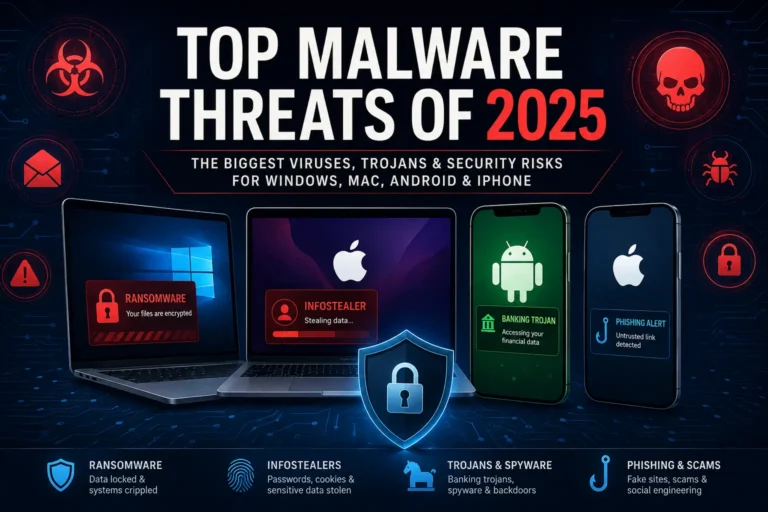
Malware comes in many forms. Each type works differently, but they all share one goal: to harm you or your devices. Some are loud and obvious, like ransomware that locks your files and demands money. Others are quiet, stealing information without you noticing.
Below is a breakdown of the most common types of malware, explained in plain language, along with real-world examples to show how dangerous they can be.
Viruses
A computer virus is one of the oldest and most well-known types of malware. Like a human virus, it spreads by attaching itself to clean files or programs. Once you open the infected file, the virus activates, replicates, and can damage or delete data, slow down systems, or make them crash.
How it works:
You might download what looks like a harmless file—maybe a document or an image—but once you open it, the virus executes and begins infecting other files on your system.
Example:
The Melissa Virus (1999) spread through email. Victims received an email with an attachment that, when opened, sent the same infected email to everyone in their address book. It overwhelmed email systems worldwide.

Worms
Worms are similar to viruses but even more dangerous because they don’t need a host file to spread. Worms can copy themselves and move from one computer to another without any human action. They often exploit weaknesses in network security to travel quickly.
How it works:
A worm enters your system through an open network port or by exploiting software vulnerabilities. Once inside, it duplicates itself and looks for new targets.
Example:
The WannaCry Worm (2017) infected more than 200,000 computers in 150 countries. It exploited a Windows security flaw, spreading rapidly across networks. Once infected, computers were locked by ransomware (more on that below).
Trojans (Trojan Horses)
Trojans are malware disguised as something useful or safe—like a free app, game, or email attachment. Once installed, a Trojan can open a backdoor for attackers to steal your data or control your computer remotely.
How it works:
You think you’re downloading something helpful, but you’re really installing malware. Trojans rely on tricking users into trusting them.
Example:
Emotet started as a banking Trojan that stole sensitive information. It spread through phishing emails with infected attachments. Once installed, it opened the door for other malware to infect the system.
Ransomware
Ransomware locks or encrypts your files and demands payment to unlock them. It’s like a digital kidnapper holding your data hostage. Victims are often told to pay in cryptocurrency because it’s hard to trace.
How it works:
You might click on a malicious link or download a file from an email. Ransomware installs itself, locks your files, and displays a ransom note demanding money.
Example:
CryptoLocker (2013) spread through email and encrypted users’ files. Victims were given a deadline to pay for a decryption key. In 2020, REvil, a ransomware group, targeted large companies and demanded millions in ransom payments.
Spyware
Spyware secretly watches what you do on your computer. It can log your keystrokes, track your browsing habits, and steal personal data like passwords or credit card numbers. Spyware often runs quietly in the background.
How it works:
Spyware can be bundled with free software or installed by clicking malicious ads or links. Once installed, it gathers information and sends it to cybercriminals.
Example:
The Pegasus Spyware, created by NSO Group, was used to spy on journalists, activists, and political figures. It could read texts, listen to calls, and track a user’s location—all without their knowledge.
Adware
Adware floods your screen with unwanted advertisements, often in the form of pop-ups or banners. Some adware tracks your online behavior and sells the data to advertisers. While adware is usually more annoying than harmful, it can open doors for more dangerous malware.
How it works:
Adware often comes bundled with free downloads or apps. Once installed, it can hijack your browser and show ads everywhere, slowing down your device.
Example:
Fireball Adware infected over 250 million computers worldwide. It hijacked browsers, changed search engines, and tracked user data without consent.
Rootkits
Rootkits are a type of malware designed to hide deep inside a computer system. They give attackers administrative control while staying hidden from antivirus software. Rootkits make it easier for hackers to steal information or install more malware.
How it works:
A rootkit can be installed through a malicious download or by exploiting a vulnerability. Once active, it burrows into your operating system, making it hard to detect or remove.
Example:
In 2005, Sony BMG included a rootkit in its music CDs as a form of digital rights management (DRM). The rootkit hid itself and left users’ systems open to other malware infections. Sony faced lawsuits and public backlash for the incident.
Keyloggers
Keyloggers record every keystroke you make. They capture sensitive information like passwords, credit card numbers, and private messages. Cybercriminals use keyloggers to steal personal and financial data.
How it works:
Keyloggers can be installed through infected downloads or phishing scams. Some hardware keyloggers are physically attached to a computer to capture keystrokes directly.
Example:
The Olympic Vision Keylogger was used in targeted attacks to gather login credentials and sensitive data from government and business employees.
Bots and Botnets
A bot is a computer infected with malware that allows it to be controlled remotely by a hacker. When thousands of infected computers (bots) are connected, they form a botnet. Botnets can be used for various attacks, such as sending spam emails or launching Distributed Denial-of-Service (DDoS) attacks that overwhelm websites and servers.
How it works:
Bots often get installed through malware downloads or phishing scams. Once your computer is part of a botnet, it can be used for criminal activities without your knowledge.
Example:
The Mirai Botnet (2016) infected internet-connected devices like cameras and routers. It launched massive DDoS attacks that took down major websites, including Twitter, Netflix, and Reddit.
These are just some of the most common types of malware. They each work differently, but the goal is usually the same: to gain something valuable at your expense—whether that’s your personal data, money, or control of your device.
Next, we’ll cover how malware can impact your life and, more importantly, how you can protect yourself from it.
How Malware Affects You
Most people think malware is just a tech problem for big companies or governments. It’s not. Malware often targets everyday users because they tend to have weaker security and are easier to trick. The effects can be immediate and obvious, or they can happen quietly in the background for months before you notice anything is wrong.
Here’s how malware can affect you and why it’s something you shouldn’t ignore.

Slows Down Your Computer or Phone
Malware often runs silently in the background, using up your device’s processing power and memory. You might notice your computer or phone taking forever to load websites, open apps, or boot up. If things suddenly get sluggish without a clear reason, malware could be the cause.
Annoying Pop-Ups and Intrusive Ads
Adware and some spyware can flood your screen with pop-ups, banners, and ads. Sometimes these ads redirect you to unsafe websites, exposing you to even more malware. If you’re getting strange ads on websites that normally don’t have them, that’s a red flag.
Stolen Personal Information
Some malware, like spyware and keyloggers, is designed to steal your sensitive information—passwords, credit card numbers, banking details, and personal messages. Once cybercriminals have your data, they can:
- Empty your bank accounts.
- Make unauthorized purchases.
- Steal your identity for fraud or scams.
Loss of Important Files and Data
Ransomware can encrypt your files—photos, documents, work files—and demand payment to unlock them. If you don’t have backups, you could lose everything. Even if you pay the ransom, there’s no guarantee you’ll get your files back.
Financial Loss
Malware can hit your wallet hard. Beyond stolen money or ransom payments, you might have to:
- Pay for computer repairs or data recovery services.
- Replace infected devices.
- Deal with fraudulent charges on your accounts.
Compromised Privacy
Spyware and other surveillance malware can invade your privacy, tracking where you go, who you talk to, and what you do online. Some advanced spyware can turn on your webcam or microphone without you knowing, giving hackers a window into your personal life.
Your Device Becomes Part of a Botnet
Malware can turn your computer or phone into a bot—a device controlled remotely by hackers. Your device might be used to send spam, spread malware, or launch attacks on websites (DDoS attacks). Often, you won’t know your device is involved in criminal activity until your internet slows down or you get a warning from your internet provider.
Legal and Personal Trouble
If your device is used in cybercrimes without your knowledge, it can raise legal questions. While investigators can often figure out what happened, the process can be stressful and time-consuming. On a personal level, malware can damage your reputation if your accounts are hacked and used to scam your contacts.
Emotional Stress and Anxiety
Dealing with malware can be stressful. Losing personal photos, private messages, or sensitive documents can feel like a personal violation. The stress of fixing the damage, restoring your identity, and securing your devices can take a toll.
Why This Matters
Malware isn’t just a technical issue—it affects your time, money, privacy, and peace of mind. Whether it’s losing precious family photos to ransomware or having your bank account drained by a keylogger, the consequences are real.
In the next section, we’ll cover how you can protect yourself from malware and avoid becoming the next victim.
How to Protect Against Malware
The good news is you can protect yourself from most types of malware with a few simple habits and tools. Cybercriminals often look for easy targets—people who skip updates, click suspicious links, or ignore basic security practices. You don’t need to be a tech expert to stay safe. Here’s how to lower your risk and protect your devices, data, and privacy.
Keep Your Software Updated
Software updates aren’t just about new features. They fix security holes that hackers exploit. Outdated operating systems, browsers, and apps make you an easy target.
What to do:
- Enable automatic updates on your devices.
- Regularly check for updates on your computer, phone, and apps.
- Don’t ignore update reminders—they’re there for a reason.

Use Reliable Antivirus and Anti-Malware Protection
A good antivirus program is your first line of defense. It scans files, websites, and downloads in real time, blocking threats before they can do damage.
What to look for in antivirus software:
- Real-time scanning.
- Automatic updates.
- Malware, spyware, and ransomware protection.
- A reliable track record (choose well-reviewed products from trusted companies).
Tip:
Set your antivirus to run full system scans regularly, not just quick scans.
Be Cautious with Emails and Attachments
Phishing emails are one of the most common ways malware spreads. These emails often look like they’re from a trusted company or person but include malicious links or attachments.
How to avoid email-based malware:
- Don’t open attachments from people you don’t know.
- Be wary of links in emails that seem urgent or ask for personal info.
- Look for signs of phishing: bad grammar, strange email addresses, and unexpected messages.
Download Software from Trusted Sources
Many types of malware are hidden in fake or pirated software. Free downloads from shady websites often come with unwanted extras—like spyware or adware.
Safe downloading tips:
- Only download apps and software from official websites or app stores.
- Avoid pirated software—it’s often bundled with malware.
- Double-check the publisher before installing anything.
Use Strong, Unique Passwords
Weak passwords make it easy for hackers to break into your accounts. Reusing the same password across multiple sites is also risky—if one site is hacked, all your accounts are exposed.
What to do:
- Use strong long passwords (at least 12 characters) with a mix of letters, numbers, and symbols.
- Never reuse passwords.
- Use a password manager to create and store complex passwords.
- Enable two-factor authentication (2FA) when possible for extra protection.
Back Up Your Data Regularly
If ransomware encrypts your files, having a backup can save you from paying a ransom or losing everything.
Backup tips:
- Use both an external hard drive and a cloud service.
- Schedule automatic backups so you don’t have to think about it.
- Disconnect external drives when not in use to prevent them from being infected.
Secure Your Network
A poorly secured Wi-Fi network can give attackers easy access to your devices.
Steps to secure your home network:
- Use a strong Wi-Fi password.
- Change the default username and password on your router.
- Enable network encryption (WPA3 if possible, or WPA2 as a minimum).
- Keep your router firmware updated.
- Turn off remote management features if you don’t need them.
🛡️ For a more detailed guide on protecting your home network, including the latest best practices for 2025, check out Securing Your Home Network: Best Practices
Be Smart About Public Wi-Fi
Public Wi-Fi is convenient but risky. Hackers can set up fake hotspots or intercept your connection to steal data.
What to do:
- Avoid accessing sensitive accounts (like online banking) on public Wi-Fi.
- Use a virtual private network (VPN) when using public networks.
- Turn off file sharing on your device when using public Wi-Fi.
Educate Yourself and Others
Cyber threats constantly evolve. Staying informed helps you recognize new scams and tactics.
How to stay informed:
- Follow trusted cybersecurity blogs and news sites.
- Take free online courses or webinars about basic cybersecurity.
- Share what you learn with friends and family, especially those less tech-savvy.
For up-to-date resources and tips on staying safe online, visit our Security Center.
Bottom Line
Most malware infections happen because of simple mistakes—clicking the wrong link, skipping updates, or downloading sketchy software. By following these basic practices, you’ll make it much harder for hackers to target you.
Up next: What to do if you think your device is already infected with malware.
What to Do If Your Device Is Infected
Even with the best precautions, malware can still slip through. If your device is acting strange—running slow, crashing, showing unexpected ads, or behaving in ways you can’t explain—it could be infected. The faster you act, the more likely you can limit the damage.
Here’s a step-by-step guide on what to do if you suspect your device has malware.
Disconnect from the Internet
As soon as you notice something’s wrong, disconnect your device from the internet. This helps stop the malware from:
- Communicating with remote servers (especially for ransomware or spyware).
- Spreading to other devices on your network.
- Sending out your personal data.
How to do it:
- Turn off Wi-Fi and Bluetooth.
- Unplug the Ethernet cable if you’re using a wired connection.

Enter Safe Mode (If Possible)
Safe Mode runs your device with only essential programs and services. Malware usually doesn’t load in Safe Mode, which makes it easier to find and remove.
How to do it:
- For Windows: Restart your computer and press F8 (or hold Shift and click Restart) to enter Safe Mode.
- For Mac: Restart and hold down the Shift key until you see the login window.
- For Android: Hold the power button, then tap and hold Power Off, and select Safe Mode.
Run a Full System Scan with Antivirus Software
Once in Safe Mode (or if you can’t access it, stay offline), run a deep scan using your antivirus or anti-malware software. Don’t rely on a quick scan—malware often hides in places quick scans miss.
Steps to take:
- Update your antivirus software first, if possible.
- Run a full system scan and let it finish.
- Follow the instructions to quarantine or delete any threats found.
🔍 If you need reliable antivirus tools to run a full system scan, explore our recommended options here: Antivirus & Security Software.
Remove or Quarantine the Malware
Your antivirus software should give you the option to either delete or quarantine the infected files. Quarantine isolates them, preventing further harm while keeping them for analysis if needed.
Tip:
If the antivirus can’t remove the malware, you may need a dedicated malware removal tool (many antivirus companies offer these for free).
Delete Temporary Files
After removing malware, delete your temporary files. This can speed up the scan process and get rid of any hidden malware files.
How to do it:
- For Windows: Use Disk Cleanup.
- For Mac: Use the Finder to delete unnecessary files in the cache and temporary folders.
- For Android/iOS: Clear cache in settings (storage management).
Restore from Backup (If Needed)
If the malware damaged or encrypted important files, and you have a clean backup, now’s the time to use it. Make sure the backup was made before the infection—restoring an infected backup will just bring the problem back.
Steps to take:
- Wipe your device if the infection was severe.
- Reinstall your operating system (optional but effective in extreme cases).
- Restore files from your backup.
Change Your Passwords
If your device was infected, assume that any saved passwords may have been stolen—especially if you were hit with spyware or a keylogger.
What to do:
- Change passwords for your important accounts: email, banking, shopping, and social media.
- Use a different device (that you’re sure is clean) to make the changes.
- Enable two-factor authentication (2FA) for extra security.
Monitor Your Accounts and Credit
After a malware infection, watch for unusual activity on your accounts. This includes emails, bank transactions, social media accounts, and online purchases.
Tips:
- Review recent transactions on your bank and credit card accounts.
- Check your email “Sent” folder for spam or phishing emails sent from your address.
- Consider placing a fraud alert or credit freeze with a credit bureau if sensitive data was stolen.
🕵️♂️ For added protection against identity theft and fraud, explore Norton Identity Protection. It offers tools to help monitor your personal information and secure your identity.
Report Serious Incidents
If you’ve been hit by serious malware, such as ransomware or identity theft, you may need to report it to the authorities.
Where to report:
- For ransomware or fraud: Contact your local law enforcement or cybercrime unit.
- For widespread malware outbreaks: Report to national cyber agencies (like the FBI’s Internet Crime Complaint Center in the U.S.).
- For financial theft: Contact your bank immediately.
Learn from the Experience
Once your device is clean, take time to understand how the infection happened. This helps prevent it from happening again.
Ask yourself:
- Did you click on a suspicious link?
- Were you using outdated software?
- Was your antivirus software turned off or out of date?
Use the experience to strengthen your security habits going forward.
Bottom Line
Finding out your device is infected with malware can be stressful, but acting quickly makes a huge difference. Disconnect, scan, remove, and stay alert. And once you’re clear of malware, take steps to prevent future infections—because the best defense is staying ahead of the next attack.
Conclusion: Stay One Step Ahead of Malware
Malware isn’t going away. In fact, it’s only getting smarter. Cybercriminals are always looking for new ways to trick users and break into systems. But the good news is that most malware infections can be prevented with a little caution and the right tools.
You now understand what malware is, the different types you might encounter, and how they work—from viruses and worms to ransomware and spyware. You’ve seen how malware can affect your devices, your personal information, and even your finances. More importantly, you’ve learned practical steps to protect yourself: keep your software updated, use reliable antivirus protection, stay cautious with downloads and emails, and back up your data.
The key to staying safe isn’t being an expert. It’s being aware. If you stay informed and follow basic security practices, you make yourself a much harder target.
If you’re serious about protecting your devices and personal data, consider using a trusted antivirus solution that offers real-time protection against all types of malware. And if you found this guide helpful, check out our blog for more tips on staying safe in a connected world.