Adware – A Type of Malware
Adware: The Annoying Threat Hiding Behind Free Software
Pop-up ads. Sluggish performance. Random browser redirects. If you've ever experienced these symptoms, there's a good chance Adware was behind them.
Adware—short for advertising-supported software—is one of the most common (and most underestimated) digital threats. It often sneaks into your system bundled with free apps or disguised as something useful. At first glance, it seems like a nuisance. But under the surface, it can track your behavior, hijack your browser, and open the door to more serious infections.
In this article, we break down exactly what Adware is, how it gets on your device, what to watch for, and how to get rid of it. We’ll also explain where it fits in the larger world of “grayware”—a category of software that isn’t outright malicious, but still a problem.
Whether you're on a PC, Mac, or mobile device, understanding Adware is the first step to keeping your system clean and your data private.
What Is Adware?
Adware is software designed to display advertisements—often aggressively—on your device, usually without your full consent. Its main goal is to generate revenue by showing you ads, tracking your activity, or redirecting you to sponsored websites.
Sometimes, Adware is bundled with free programs or apps as a way for developers to make money. In those cases, the ads might be disclosed somewhere in the fine print. But other times, Adware installs itself silently in the background, floods your screen with unwanted ads, and even changes your browser settings without permission.
It’s important to distinguish between legitimate ad-supported software (where ads are part of the deal and clearly disclosed) and malicious or deceptive Adware. The line between the two can get blurry, especially when the software starts:
- Tracking your browsing history
- Injecting ads into unrelated websites
- Slowing down your system or browser
In many cases, Adware operates in the gray zone between “nuisance” and “threat.” It might not cause direct harm like a virus or ransomware, but it can seriously affect your privacy, user experience, and device performance.
Adware vs. Spyware vs. Legitimate Ads
Adware is often confused with other types of software that show ads or track behavior, like Spyware or even legitimate ad-supported apps. Here’s how they compare:
| Feature | Adware | Spyware | Legitimate Ads |
|---|---|---|---|
| Shows Ads | ✅ Yes | ❌ No | ✅ Yes |
| Tracks User Behavior | ⚠️ Sometimes (often without consent) | ✅ Yes (covertly) | ⚠️ Sometimes (if disclosed in privacy policy) |
| User Consent | ❌ Often unclear or hidden | ❌ No | ✅ Yes (via opt-in or terms) |
| Installed with Other Apps | ✅ Common (bundled installs) | ✅ Often piggybacks on other software | ❌ Not installed software |
| Security Risk | ⚠️ Medium | ✅ High | ❌ None |
How Adware Gets on Your Device
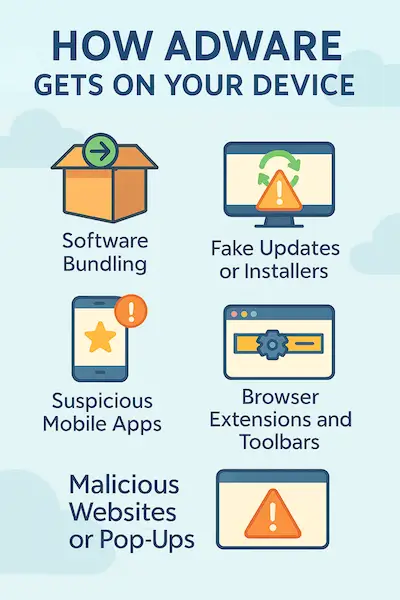
Adware doesn’t usually ask for permission—it sneaks in quietly, often hidden behind something that seems safe or useful. Here are the most common ways it makes its way onto your device:
Software Bundling
This is the most common method. Adware is often bundled with free software, like file converters, browser extensions, games, or media players. During installation, it may be included as a “recommended” offer or pre-selected checkbox that many users overlook. If you click through the setup quickly, you may unknowingly install Adware along with the main program.
Fake Updates or Installers
Some Adware disguises itself as a system update or popular software installer. You might think you’re updating Flash Player or downloading a browser, but you’re actually installing Adware—or worse, Adware along with other malware.
Suspicious Mobile Apps
On smartphones, especially Android devices, Adware often comes through free apps from unofficial sources or sketchy developers. These apps may flood your screen with pop-up ads, notifications, or full-screen takeovers—even when you’re not using them.
Browser Extensions and Toolbars
That free browser toolbar or “helpful” extension? It might be packed with Adware. Once installed, these add-ons can inject ads into web pages, track your browsing, and even redirect your searches to sponsored results.
Malicious Websites or Pop-Ups
Sometimes, just visiting a shady website or clicking on a deceptive ad can trigger a drive-by download, where Adware gets installed in the background with little to no user input.
In most cases, Adware relies on users letting their guard down—either by skipping through install steps or downloading from untrusted sources. The more cautious you are with what you install and where you get it, the safer your system stays.
Signs Your Device Might Have Adware
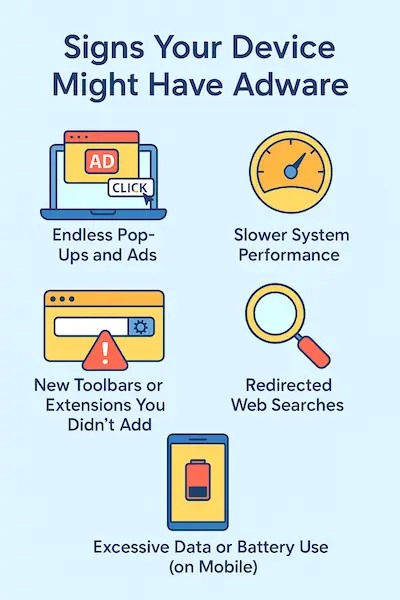
Adware doesn’t always announce itself, but it leaves behind clues. If your device suddenly starts acting strange, you might be dealing with an Adware infection. Here are the most common signs to watch for:
Endless Pop-Ups and Ads
You’re seeing pop-up ads, banners, or full-screen promos—even when you’re not browsing the web. These ads may appear on your desktop, in your browser, or over other apps.
Slower System Performance
Adware runs in the background, which can eat up memory and processing power. If your device feels sluggish or your apps take longer to load, Adware could be to blame.
New Toolbars or Extensions You Didn’t Add
If you notice strange toolbars in your browser, unexpected shortcuts on your desktop, or extensions you don’t remember installing, Adware likely snuck them in during a bundled install.
Redirected Web Searches
You type a query into Google, but your browser takes you to a different search engine or a sponsored site. This kind of redirect is a classic sign of browser-based Adware.
Excessive Data or Battery Use (on Mobile)
Mobile Adware—especially Madware—can cause fast battery drain, high data usage, and constant notifications or pop-ups.
If you notice any combination of these issues, it’s a good idea to run a full system scan with a trusted security tool and check your list of installed apps or extensions. The sooner you act, the better.
Risks and Consequences of Adware
At first glance, Adware might just seem like an annoyance. But the reality is, it can go from irritating to risky very quickly. Here’s what’s really at stake when Adware is on your device:
Privacy Invasion
Many Adware programs track your browsing habits, search history, location, and even what you click on. This data is often sold to advertisers or third parties without your knowledge. Some Adware crosses into spyware territory, collecting far more data than you’d expect.
Security Vulnerabilities
While Adware itself might not be destructive, it can open the door to more dangerous malware. Some Adware downloads additional software in the background or redirects you to unsafe websites filled with phishing scams or malicious code.
System Instability
Adware consumes system resources, and in some cases, it can conflict with legitimate programs, cause crashes, or slow down performance across the board. This is especially true when multiple Adware apps are running at once.
Business and Workplace Risks
In business environments, Adware can compromise sensitive data, distract employees, and damage network performance. It can also give outsiders a foothold into otherwise secure systems.
Erosion of Trust
Users often blame the platform or software that “allowed” Adware in. This erodes trust in apps, developers, and even the operating system. If your device is constantly spamming you, it’s hard to feel safe using it.
Bottom line: Adware is more than just a hassle—it’s a real risk to your privacy, security, and digital peace of mind. Treat it like a threat, not just an inconvenience.
Adware on Mobile Devices (Madware)

Adware isn’t just a desktop problem. It’s also a growing issue on mobile devices—especially Android phones. In the mobile world, this type of Adware is often called Madware (short for mobile Adware), and it can be just as disruptive.
What Is Madware?
Madware is advertising software embedded in mobile apps, typically free ones. It floods your phone with pop-up ads, banners, push notifications, or even ads that appear outside the app, hijacking your screen at random times.
How It Gets In
Most Madware is hidden inside apps that look harmless—or even useful. Think free games, flashlight apps, or photo editors from unknown developers. Once installed, these apps abuse permissions to deliver ads in ways you didn’t agree to.
Some Madware doesn’t stop at showing ads. It may also:
- Track your location, contacts, and usage habits
- Install shortcuts or icons on your home screen
- Change browser settings or redirect your searches
The Impact
While not always classified as malware, Madware can seriously affect your user experience, privacy, and battery life. It often causes:
- Faster battery drain
- Excessive mobile data usage
- Annoying interruptions, even when the app isn’t open
If your phone is acting strangely and you’re seeing ads in places they shouldn’t be, it’s time to check for suspicious apps. Removing Madware can instantly improve your phone’s speed, battery life, and usability.
How to Remove Adware
Once Adware is on your device, it can be tricky to fully remove—especially if it’s disguised as a legitimate program. But with the right steps, you can clean your system and get things back to normal.
On a Computer (Windows or macOS)
1. Uninstall Suspicious Programs
Go to your system’s list of installed applications and look for anything unfamiliar or recently added—especially software you don’t remember installing. Uninstall anything suspicious.
2. Reset Your Browser
Adware often messes with your browser settings. To fix this:
- Remove unknown extensions or toolbars
- Reset your homepage and default search engine
- Clear browser cache and cookies
3. Use a Trusted Security Tool
Run a full system scan with reliable antivirus or anti-malware software. Many security tools have dedicated Adware detection and removal features. Avoid random “Adware cleaners” from unverified sources.
On a Mobile Device (Especially Android)
1. Identify and Remove Problem Apps
Check your list of installed apps and delete anything you don’t recognize or didn’t install intentionally—especially apps that appeared around the time the problems started.
2. Revoke App Permissions
Go to your phone’s settings and review app permissions. If an app has access to things it doesn’t need (like your contacts, location, or system settings), either remove it or disable the permissions.
3. Install a Mobile Security App
Use a reputable mobile antivirus or security app to scan your phone for Adware and other threats. Many can also block malicious apps before they cause problems.
When in Doubt: Reinstall
If Adware has deeply embedded itself or keeps coming back, sometimes the best option is to back up your data and do a clean reinstall of your operating system (on desktop) or factory reset (on mobile). Just be sure to avoid reinstalling the same bad apps afterward.
Removing Adware doesn’t have to be complicated, but it does take attention to detail. The key is knowing what to look for—and acting quickly before the problem spreads or worsens.
How to Prevent Adware Infections
Adware relies on you letting your guard down. The good news is, with a few smart habits, you can avoid most Adware before it ever touches your device. Here’s how:
Be Cautious with Free Software
Free apps and tools are the most common source of Adware. If something seems too good to be true—or if it's from an unknown developer—think twice before downloading. Stick to reputable sources and well-reviewed apps.
Always Choose Custom Installation
When installing software, never go with the “quick” or “default” option. Choose the custom or advanced install, which lets you review and uncheck any bundled offers or hidden installs.
Avoid Shady Download Sites
Don’t download software from random pop-ups, file-sharing platforms, or unofficial mirrors. These are often loaded with Adware, spyware, or worse. Use the official website or a trusted app store.
Keep Your Software Updated
Adware sometimes exploits vulnerabilities in your system or browser. Regular updates to your operating system, browsers, and plugins help close those security gaps.
Use Reliable Security Software
Install a reputable antivirus or anti-malware program that includes real-time protection. These tools can block Adware before it installs and flag suspicious behavior early.
Read App Permissions Carefully
Especially on mobile, check what permissions an app is asking for. If a simple calculator app wants access to your contacts or GPS, that’s a red flag.
Don’t Click on Sketchy Ads or Pop-Ups
If a website hits you with flashing ads, fake “virus alerts,” or download prompts—leave immediately. Clicking anything could trigger a silent Adware install.
Adware counts on user distraction. A little extra attention during installs and downloads goes a long way in keeping your system clean, fast, and private.
Notorious Adware: Then and Now
Adware has been around for decades, and some strains have made major headlines—either because of how widespread they became or how sneaky and damaging they were. Here’s a quick look at some of the most well-known Adware threats, both past and present.
Top 3 Most Infamous Adware of All Time
1. Gator (GAIN – Gator Advertising Information Network)
One of the earliest and most controversial Adware programs, Gator was bundled with free software in the early 2000s. It tracked user behavior and displayed targeted pop-up ads, often without clear disclosure. Gator led to lawsuits and helped spark public awareness about privacy and adware risks.
2. Fireball
Discovered in 2017, Fireball was an aggressive Adware campaign linked to a Chinese digital marketing agency. It hijacked browsers, installed plug-ins without permission, and had the capability to run malicious code—affecting over 250 million computers worldwide.
3. CoolWebSearch
This was a family of browser hijackers from the mid-2000s that redirected users to unwanted sites, altered search results, and was notoriously hard to remove. It exploited Internet Explorer vulnerabilities and installed itself through drive-by downloads.
Top 3 Notorious Adware in the Last 3 Years
1. HiddenAds (Mobile Adware Family)
HiddenAds is a broad category of Android apps that disguise themselves as games, utilities, or camera apps. Once installed, they flood users with full-screen ads, hide their icons to avoid detection, and are tough to uninstall. Dozens of variants have been removed from the Google Play Store since 2020.
2. Adrozek
First uncovered by Microsoft in 2020, Adrozek infects web browsers to inject ads into search results. It tampered with browser settings across Chrome, Firefox, and Edge, and even added rogue browser extensions to maintain control and monetize fake clicks.
3. Fake Chrome Apps & Extensions (2022–2024 variants)
In recent years, attackers have used fake Chrome extensions that appear legitimate but inject ads, steal browsing data, or redirect search queries. Some variants even managed to bypass Chrome Web Store security for months before being taken down.
Here are some notable fake or compromised Chrome extensions from recent years:
- EditThisCookie (Fake Version)
A malicious imitation of the popular EditThisCookie extension appeared in the Chrome Web Store, misleading users by closely mimicking the original's name and functionality. This counterfeit version raised concerns about potential malicious behavior in future updates. - Simple Game and Sync test BETA (colorful)
These two rogue Chrome extensions were discovered to contain keyloggers targeting cryptocurrency wallet applications. Users reported significant financial losses due to these malicious extensions. - VPNCity and Uvoice
These legitimate extensions were compromised by attackers who inserted malicious code aimed at stealing browser cookies and authentication sessions, particularly targeting social media advertising platforms.
These incidents underscore the importance of vigilance when installing and managing browser extensions. Always ensure extensions are from reputable developers, regularly review their permissions, and stay informed about any reported security issues.
Final Thoughts: Don’t Ignore the Warning Signs
Adware might seem like a minor annoyance—but left unchecked, it can become a serious problem. From privacy violations to system slowdowns and constant disruptions, it chips away at your device’s performance and your peace of mind.
The good news? Most Adware infections are preventable. By staying alert when installing apps, avoiding sketchy downloads, and using solid security tools, you can avoid the majority of these threats before they take hold.
If you’ve already been hit, don’t panic. Uninstall suspicious software, reset your browser, and run a trusted antivirus scan. It’s usually fixable—and worth the effort to get your system back to normal.
Want to go deeper? Check out our pages on:
Stay cautious, stay protected, and don’t let Adware take over your device.