Computer Security Tips
Practical ways to protect your devices, accounts, privacy, and data
Good computer security is no longer something that matters only to large businesses or highly technical users. It affects nearly everyone who uses a computer, phone, tablet, email account, or online banking service. Whether you work from home, shop online, store family photos, manage school files, or simply browse the web, your devices and accounts contain information that can be valuable to criminals.
Many people still imagine cyber threats as rare, highly advanced attacks. In reality, a large number of security problems begin with ordinary weaknesses: reused passwords, missed updates, unsafe downloads, fake emails, weak Wi-Fi settings, or missing backups. A single mistake may expose personal files, login credentials, financial details, or private conversations. The good news is that you do not need to be a security expert to lower your risk. A few consistent habits can make a major difference.
This guide brings together practical computer security tips that can help you protect your devices, online accounts, and personal information. Some of these steps are quick to apply today, while others are ongoing habits worth maintaining over time. When used together, they create a more layered and reliable approach to digital safety.
Why computer security still matters
Computer security matters because our digital lives are connected to so many everyday tasks. Personal computers and mobile devices are used for online shopping, email, banking, cloud storage, entertainment, remote work, school access, and social media. That means a security problem can affect much more than one machine. It can disrupt your finances, expose your identity, lock you out of accounts, or put your private documents at risk.
Modern threats also come in many forms. Some are obvious, such as malware, ransomware, or fake antivirus alerts. Others are far more subtle, including phishing emails, fraudulent login pages, account takeover attempts, malicious browser extensions, or scam messages that appear to come from trusted companies. Many attacks rely on speed, confusion, or habit. They do not always need to break through advanced protections if a user is tricked into opening the door.
That is why the best approach is to think in terms of layers. There is no single setting, app, or tool that solves every security problem. Instead, good protection comes from combining safe habits with updated software, strong account protection, cautious browsing, and dependable backups. Security works best as a routine, not as a one-time fix.
Keep software, operating systems, and browsers updated
One of the simplest and most important computer security tips is to keep your software updated. Security updates are designed to fix known weaknesses that attackers may try to exploit. When a device, browser, application, or operating system falls behind on updates, it may remain exposed to issues that already have a fix available.
This applies to more than just Windows or macOS. It also includes web browsers, browser extensions, office software, video meeting tools, PDF readers, password managers, security software, and mobile apps. Even home network equipment, such as routers, may need occasional firmware updates to stay secure.
Why updates matter
Outdated software can create an unnecessary opening for cybercriminals. If a vulnerability becomes publicly known, attackers may begin scanning for devices or applications that were never patched. In many cases, the attack succeeds not because the user did anything dramatic, but because a known flaw was left unaddressed.
What to do
Turn on automatic updates wherever practical. This reduces the chance of forgetting important patches. For software that does not update automatically, create a simple monthly habit of checking for updates manually. Browsers should also be kept current, as they are often the main gateway between your device and the internet.
Common mistakes to avoid
Avoid delaying updates for weeks unless there is a real compatibility reason to do so. It is also a mistake to assume that only antivirus software needs updating. Your browser and operating system are just as important. If you use old devices that no longer receive security updates, consider replacing them or limiting what you do on them.
Use strong passwords and a password manager
Passwords remain one of the most common weak points in online security. Many people still reuse the same password across multiple accounts or rely on passwords that are too short, predictable, or easy to guess. That creates a chain reaction problem: if one website is breached and your password is exposed, attackers may try the same login details on email, banking, shopping, or social media accounts.
A stronger approach is to use unique passwords for every important account. That way, one compromised account does not automatically put the others at risk. Long passwords or passphrases are usually better than short, complicated strings that are hard to remember and tempting to reuse.
What makes a password stronger
A strong password should be long, difficult to guess, and not based on obvious details such as your name, birth year, pet name, or favorite sports team. A passphrase made of several unrelated words can be both strong and easier to remember than a short password filled with patterns and substitutions.
Why a password manager helps
Trying to remember dozens of unique passwords without help often leads people back to unsafe habits. A password manager makes it easier to store, organize, and generate strong passwords without relying on memory alone. It also reduces the temptation to keep passwords in unsecured notes, documents, or emails.
Common mistakes to avoid
Do not use one password for everything. Do not store passwords in plain text on a shared computer. Avoid sending passwords through email or messaging apps unless there is no safer option. It is also wise to review old accounts from time to time and change passwords for services you no longer trust or no longer use regularly.
Turn on multi-factor authentication
Even strong passwords are not perfect. They can still be stolen through phishing, reused after a data breach, or exposed on an infected device. That is why multi-factor authentication, often called MFA or two-factor authentication, is such an important second layer of protection.
MFA requires more than just your password when you log in. You may also need to enter a code from an authenticator app, confirm a login on another device, or use another approved verification method. This extra step can stop many account takeover attempts, even if someone has already learned your password.
Where to enable it first
Start with your email account, banking accounts, cloud storage, password manager, work logins, and primary social media accounts. Email is especially important because it is often used to reset passwords for other services. If an attacker gains access to your email, recovering the rest of your accounts becomes much harder.
Choosing stronger options
Authenticator apps are often a better option than relying only on text messages, especially for highly important accounts. The main goal is to avoid using password-only logins wherever stronger protection is available.
Common mistakes to avoid
Do not approve an unexpected login request just because it appears on your phone. If you receive repeated verification prompts that you did not initiate, treat them as suspicious. Also make sure you store backup codes safely in case you lose access to the device you use for authentication.
Use reputable antivirus and built-in security protections
Antivirus software remains an important part of computer security, especially for detecting malware, blocking suspicious files, warning about unsafe downloads, and helping identify malicious behavior. However, it should be viewed as one layer of protection, not as a complete solution by itself.
A good security setup usually combines reputable antivirus software with the protections already built into modern operating systems. These may include a firewall, browser security features, application controls, and security warnings related to suspicious downloads or websites.
What antivirus can help with
Antivirus software can help detect malicious files, known malware threats, unsafe attachments, and potentially unwanted applications. Some security suites also include additional features such as phishing protection, safer browsing tools, identity-related alerts, or VPN options.
Why it should not be your only defense
Antivirus software cannot fully protect someone who uses weak passwords everywhere, ignores software updates, and clicks on every suspicious link. Security works best when antivirus is combined with safer account habits, cautious browsing, and regular backups.
What to check
Make sure your antivirus is active, updated, and configured to provide real-time protection. If the software supports scheduled scans, use them. Also confirm that your system firewall is enabled unless you have a specific reason to manage that differently.
Learn to recognize phishing, scams, and suspicious emails
Phishing remains one of the most effective ways for criminals to steal passwords, payment information, and personal data. These attacks often arrive through email, text messages, social media, fake popups, or malicious ads. The message may appear urgent, convincing, or familiar, which is exactly why it works.
A phishing message may claim there is a problem with your bank account, a package delivery, a streaming subscription, a password reset request, or a business invoice. Some messages try to scare users into acting quickly, while others create curiosity or excitement. In both cases, the goal is often the same: to get you to click, log in, download, or pay.
Common warning signs
Be cautious with messages that create panic, demand immediate action, or ask for sensitive information unexpectedly. Poor grammar, unusual sender addresses, misspelled domains, suspicious attachments, or login links that do not match the real company website are all common warning signs.
Safer habits to follow
If you receive an unexpected account warning, shipment alert, or payment request, do not use the link in the message right away. Instead, visit the official website directly by typing the address yourself or opening a trusted bookmark. If the matter is real, you should usually be able to confirm it from within your account dashboard.
Common mistakes to avoid
Do not assume a message is safe because it uses a company logo or looks professionally designed. Also be careful with attachments from unknown or unexpected senders. A polished message can still be a scam. When in doubt, slow down and verify first.
Learn more about how to recognize phishing, scams, and suspicious emails.
Secure your Wi-Fi and use public networks carefully
Your internet connection is another important part of your security setup. A poorly secured home Wi-Fi network may make it easier for unauthorized users to access your network or target connected devices. Public Wi-Fi can create additional privacy and security concerns, especially if you use it for sensitive logins.
Protecting your home network
Change default router passwords, use strong Wi-Fi credentials, and review your router settings from time to time. If your router supports stronger encryption options, use them. It is also a good idea to keep router firmware updated when updates are available.
Using public Wi-Fi more safely
On public Wi-Fi, avoid logging in to highly sensitive accounts unless necessary. Banking, payment activity, and private work access are better handled on a trusted network. A VPN can improve privacy on untrusted networks, but it does not make careless browsing risk-free. You still need to pay attention to website legitimacy and login safety.
Common mistakes to avoid
Do not leave your home Wi-Fi network with weak or default credentials. Avoid connecting automatically to unknown hotspots. Also be cautious with public networks that use names similar to those of airports, coffee shops, or hotels, as fake hotspots do exist.
Back up important files and make sure you can recover them
Backups are one of the most practical safeguards you can have. They protect you not only from malware and ransomware, but also from hardware failure, accidental deletion, theft, syncing mistakes, and corrupted files. If something goes wrong, a good backup can turn a major loss into a manageable inconvenience.
Many users know backups are important, but still delay setting them up. Others believe that storing files in one cloud account is automatically enough. In reality, a better approach is to think about both backup availability and recovery reliability.
What a better backup strategy looks like
Use automatic backups where possible so the process does not depend entirely on memory. Store important files in more than one location when practical, such as a trusted cloud service and an external drive. That way, one problem is less likely to wipe out everything at once.
Recovery matters too
A backup is only useful if you can restore from it. It is worth checking from time to time that your files are actually available, readable, and recoverable. This is especially important for family photos, work documents, tax records, school projects, and other irreplaceable data.
Common mistakes to avoid
Do not assume a backup is working just because it was set up once. Do not keep your only backup on the same device as the original files. Also avoid backing up only a portion of your important information while forgetting documents stored in other folders, desktop locations, or secondary user accounts.
Learn more in our Data Backup Guide. See here for how to choose the Best Backup Software.
Limit permissions, downloads, and unnecessary access
Another useful computer security habit is to reduce unnecessary access. The more software, plugins, permissions, and elevated privileges you allow, the more potential openings you create. This does not mean you need to lock down every device aggressively, but it does mean being selective about what you install and what you approve.
Be careful with software downloads
Download software from trusted sources whenever possible. Free tools, unofficial installers, cracked software, and misleading download portals can expose users to malware, adware, or unwanted programs. Even if the file is not outright malicious, it may still include bundled software you never intended to install.
Check our Dangers of Free Downloads article to get more information.
Review permissions and account access
Look at the permissions requested by apps, browser extensions, and online services. Ask whether they really need access to your microphone, camera, contacts, storage, or browsing activity. On shared or family devices, avoid giving every user full administrator access unless there is a real reason to do so.
Common mistakes to avoid
Do not click through installation prompts without reading them. Do not approve every extension just because it promises convenience. Also be cautious about leaving old apps and services connected to your accounts forever. If you no longer use something, disconnect or remove it.
Protect your privacy on social media and across online accounts
Privacy and security often overlap. The more personal information you share publicly, the easier it may become for someone to impersonate you, guess account recovery details, build a convincing scam, or target you with social engineering. Social media profiles can reveal birthdays, family names, locations, routines, workplaces, interests, and travel plans.
Why oversharing can be risky
Details that seem harmless on their own may become useful when combined. For example, information from public posts can sometimes help an attacker answer security questions, craft believable phishing messages, or pretend to be someone you know.
What to review
Check your privacy settings on major social platforms and online accounts. Think carefully before making contact lists, personal photos, location history, or family details widely visible. It is also wise to review older posts that may reveal more than you intended.
Common mistakes to avoid
Avoid posting sensitive travel plans in real time. Be cautious with quizzes, games, and viral prompts that collect personal details. Also think twice before accepting friend or contact requests from people you do not truly know, even if they appear to share mutual connections.
Read our Social Networking Safety Tips to learn more about the social media safety and security.
Don’t overlook browser and mobile security
Many people think mainly about desktop computer security, but web browsers and mobile devices deserve just as much attention. Browsers are where many scams, malicious ads, fake websites, and unsafe downloads are encountered. Phones and tablets often contain email access, saved passwords, authentication apps, banking tools, and personal photos, which makes them highly valuable targets.
Browser security tips
Keep your browser updated, review installed extensions regularly, and remove any you do not need. Be cautious with extensions that ask for broad access to browsing data, page content, or login sessions. It is also smart to watch for fake browser update messages and deceptive popups that try to pressure you into downloading software.
Mobile security tips
Use a screen lock, keep your phone updated, install apps from trusted sources, and review permissions before granting them. Be cautious with links delivered through text messages, social media apps, and messaging platforms. Phones are often used quickly and casually, which can make scam messages easier to miss. Read more about mobile device security.
Common mistakes to avoid
Do not assume mobile devices are naturally safe just because they use app stores. Do not ignore browser extensions simply because they seem small. A weak browser or phone setup can still lead to account compromise, privacy loss, or unsafe downloads.
Monitor your accounts and respond quickly to suspicious activity
Good security is not only about prevention. It also helps to notice when something may already be wrong. Unfamiliar login alerts, password reset emails you did not request, strange sent messages, unexpected bank charges, locked accounts, new browser extensions, or missing files can all be signs that something needs immediate attention.
What to watch for
Pay attention to warnings from your email provider, bank, security software, or major online accounts. If an account offers login history or device activity, review it occasionally. For important financial accounts, enable alerts for transactions where possible.
What to do if you notice something suspicious
Change affected passwords right away, especially from a trusted device. Review account recovery settings, remove unknown sessions, and check whether forwarding rules or recovery emails were changed without your approval. If the account is tied to payment information, contact the provider or financial institution as needed.
Why quick action matters
The sooner suspicious activity is identified, the more likely it is that you can limit damage. A fast response may prevent additional account takeovers, payment fraud, or the spread of malicious messages to your contacts.
A quick computer security checklist
If you want a simple way to review your current setup, start with this checklist:
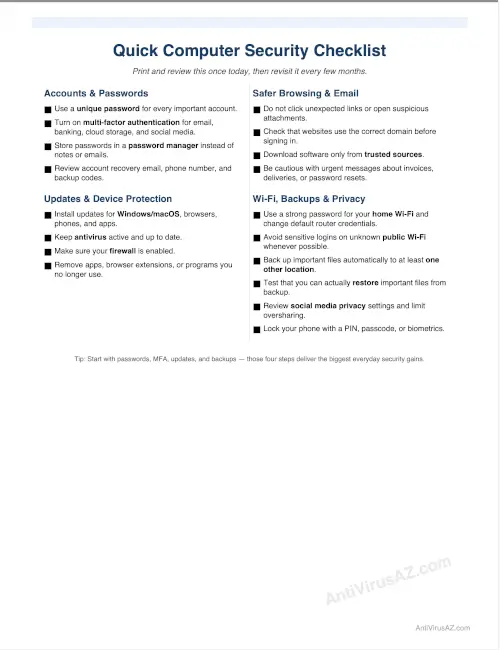
- Install operating system, browser, and app updates promptly.
- Use unique passwords for important accounts.
- Turn on multi-factor authentication wherever available.
- Keep reputable antivirus and real-time protection active.
- Be careful with email links, attachments, and urgent messages.
- Secure your home Wi-Fi and be cautious on public networks.
- Set up automatic backups for important files.
- Download software only from trusted sources.
- Review privacy settings on social media and other online accounts.
- Check browser extensions, mobile apps, and device permissions regularly.
- Watch for suspicious account activity and respond quickly when needed.
You do not need to complete everything at once. Even making progress on a few of these areas can improve your overall security posture.
👉 Download the printable quick computer security checklist
Make Computer Security a Regular Habit
The best computer security tips are often the ones people can realistically follow over time. Strong passwords, multi-factor authentication, software updates, safer browsing, good backups, and more careful account habits may sound simple, but together they provide meaningful protection. Small consistent actions are often more effective than one big reaction after something goes wrong.
Technology changes, and so do online threats, but the basic idea remains the same: reduce avoidable risk, protect what matters most, and build security in layers. Whether you are protecting one home computer or several devices used by your family, a little preparation today can prevent much larger problems later.
External resources (links open in a new tab):
- Center for Internet Security®: 11 Cyber Defense Tips to Stay Secure at Work and Home
- UC Berkeley: Top 10 Secure Computing Tips
- University of Calgary: Top 10 Cybersecurity Tips
- Federal Trade Commission: Computer Security Tips (video)