
Public Wi-Fi is part of everyday life now. People use it in cafés, airports, hotels, schools, libraries, waiting rooms, and shopping centers. It is convenient, fast, and often free. That convenience also makes many people wonder whether using it is a bad idea.
The answer is more balanced than many older warnings suggest. The Federal Trade Commission says public Wi-Fi is usually safe today because most websites now encrypt the data sent between your device and the site. At the same time, the FTC also warns that scammers can still create fake networks, fake sign-in pages, and fake websites that look convincing enough to trick people into giving up sensitive information.
That means public Wi-Fi safety is not really about panic. It is about habits. If you verify the network, keep your device updated, pay attention to warnings, and stay cautious with sensitive activity, you can lower the risk a lot. This guide covers practical public Wi-Fi safety steps for laptops, phones, and tablets, including both everyday browsing habits and device-specific tips for people who use public networks regularly.
Table of Contents
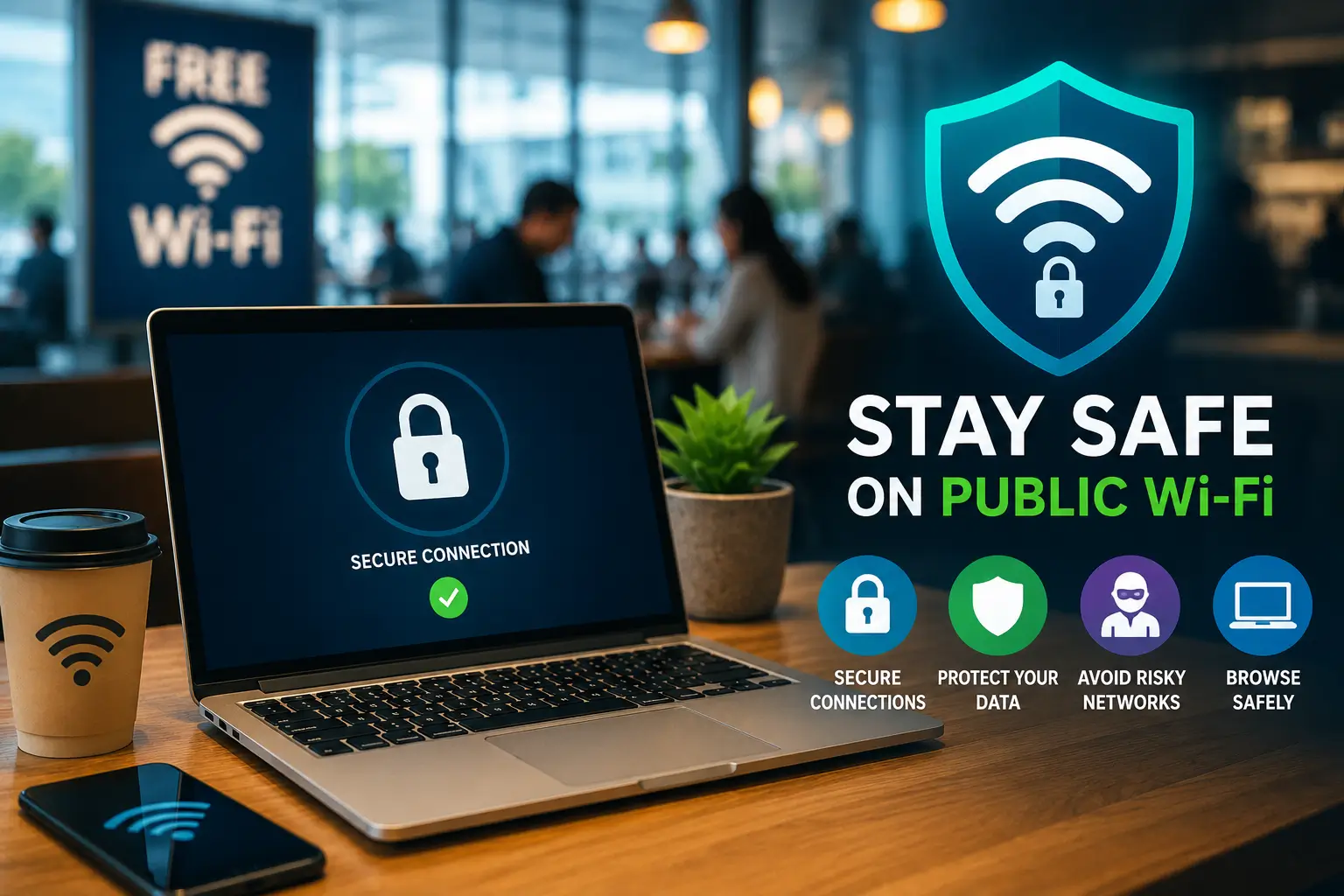
Is Public Wi-Fi Actually Safe?
In many cases, yes. The FTC says public Wi-Fi is usually safe because most websites now use encryption, which helps protect the information sent between your browser or app and the site you are using. That is an important change from older internet advice, when open wireless networks were often treated as unsafe by default.
But “usually safe” does not mean “safe no matter what.” Encryption helps, but it does not solve every problem. The FTC points out that scammers can still create fake encrypted websites designed to steal passwords, payment details, or other personal information. In other words, the lock icon and https matter, but they do not guarantee that a site is honest.
Public Wi-Fi also becomes riskier when people join the wrong network, trust suspicious sign-in pages, ignore browser warnings, or use a laptop or phone with weak security habits. That is why the real issue is not just the network itself. It is also how you use it.
That is the right way to read the rest of this guide. The goal is not to avoid public Wi-Fi forever. The goal is to use it with better judgment, better device habits, and better awareness of what can go wrong. If you do that, public Wi-Fi can be far less risky than many people assume.
The Biggest Risks on Public Wi-Fi
The biggest public Wi-Fi risks usually come from trusting the wrong thing too quickly. One common problem is joining the wrong network. In a busy place like an airport or café, a fake hotspot can use a name that looks almost identical to the real one. If you connect without checking, you may hand over traffic or login details to the wrong network. CISA advises users to confirm the correct hotspot name and password before connecting to a public wireless network.
Another risk is the fake sign-in page or fake captive portal. Some public networks use a login or acceptance page before access begins, and scammers know people expect to see them. A fake page can ask for more information than a normal hotspot should need, or it can imitate a hotel, café, or airport brand closely enough to look real.
There is also the risk of entering sensitive information on the wrong website. The FTC notes that scammers can create fake encrypted sites, which means a page can still show a lock icon and https while trying to steal information. That is why a secure connection symbol should be treated as a good sign, not as full proof that the site itself is trustworthy.
Public places also create physical risks. Someone may watch you type, glance at your screen, or take advantage of the moment you leave a laptop or phone unattended. Public Wi-Fi safety is not only about the network. It is also about how exposed your device and accounts are while you use it.
What to Do Before You Connect
The safest public Wi-Fi habit starts before you tap Join. First, confirm the real network name. Ask staff, check official signs, or use verified hotel or venue information. Do not assume the strongest signal or most familiar-looking name is the right one. CISA specifically recommends confirming the correct hotspot name and password before connecting.
It also helps to make sure your device is in good shape before you leave home or start a trip. The FTC recommends keeping your security software, operating system, and browser updated, and turning on automatic updates where possible. That way, if you do use a public network, your device is not already starting from an avoidable weak point.
Before connecting, check that your screen lock is turned on and that important accounts use multifactor authentication. The FTC also recommends strong passwords and two-factor authentication, which matters even more in public places where accounts may face extra exposure.
It is also smart to turn off auto-join for random networks if your device tends to reconnect on its own. That reduces the chance of connecting later without realizing it. On laptops, this is also a good moment to make sure you are not sharing files or folders more openly than necessary.
What to Do While You’re Connected
Once you are on a public network, the safest approach is to browse a little more carefully than you would at home. Prefer websites that use HTTPS, and pay close attention to the full site name, not just the lock icon. The FTC says the lock symbol and https show that the connection is encrypted, but they do not guarantee the site is legitimate.
Be especially cautious with banking, shopping, account changes, and other sensitive activity. Public Wi-Fi can still be fine for many normal tasks, but if something feels off about the network or the sign-in page, it is better to wait or switch to mobile data for anything important.
Do not ignore browser warnings. If your browser shows a certificate warning, a phishing warning, or any other serious security alert, stop and reassess. Those warnings matter more on unfamiliar networks, not less.
It is also wise to avoid unnecessary downloads while connected to a public hotspot. If you do need to download something, make sure it comes from a source you trust. Stay signed in only as long as needed, and be careful about pages that ask for more information than makes sense just to provide internet access.
The main idea is simple: public Wi-Fi is safer when you treat it as a useful convenience, not as a trusted home network. A little extra caution while connected goes a long way.
Public Wi-Fi Safety on Laptops
Laptops often carry the most sensitive mix of personal and work activity. They hold email, saved passwords, cloud accounts, files, browser sessions, and sometimes access to business systems. That makes a laptop on public Wi-Fi worth treating a little more carefully than a phone used only for quick browsing.
Windows laptop basics
For Windows users, the first priority is to keep Windows, the browser, and built-in security tools updated. The FTC recommends keeping your operating system, browser, and security software current before using public networks, which helps close avoidable security gaps before you even connect.
It also helps to leave the firewall and normal Windows protections on. If you use file sharing or similar network features at home, make sure they are not more open than necessary when you take the laptop into public spaces. And whenever you step away, even for a minute, lock the screen. Public Wi-Fi safety is not only about the network. It is also about who can physically access your laptop while you are distracted.
Mac laptop basics
Mac users should take the same general approach. Keep macOS and the browser updated, use a strong login password, and lock the screen when stepping away. If you use sharing features such as AirDrop or file-sharing options, review them before traveling or working in public places so they are not more open than you expect.
Apple also supports private Wi-Fi addresses, which can help reduce tracking by network operators by making it harder to tie network activity to the hardware address of your device. That is not a full privacy solution, but it is a useful extra layer when connecting to Wi-Fi outside the home.
A simple laptop rule
The most useful laptop habit on public Wi-Fi is to treat the network as temporary and untrusted. Keep the device updated, keep the screen locked when you are not using it, avoid oversharing across the network, and be cautious about what accounts and files you open while connected. A laptop often holds too much sensitive information to treat public Wi-Fi casually.
Public Wi-Fi Safety on Phones and Tablets
Phones and tablets need just as much attention on public Wi-Fi as laptops do. In some ways, they need more. They often hold banking apps, email, saved payment methods, photos, cloud access, and account recovery tools. A phone may feel casual, but it is often one of the most important devices a person owns.
Android basics
For Android devices, start with the basics: keep the phone updated, use a strong screen lock, and be cautious with public sign-in pages and suspicious downloads. If a hotspot asks for more information than seems necessary, slow down and verify before continuing.
Android also includes privacy-related network behavior such as randomized MAC addressing, which helps reduce tracking by networks in supported situations. That does not make every hotspot safe, but it is a useful reminder that mobile devices already include some protections that work best when users keep them updated and configured properly.
iPhone and iPad basics
For iPhone and iPad users, the same habits apply: keep iOS or iPadOS updated, use a strong passcode, and be careful with unfamiliar network prompts. Apple also supports private Wi-Fi addresses on iPhone and iPad, which can help reduce tracking by Wi-Fi operators in public places.
It is also smart to stay alert to odd captive portals, repeated sign-in requests, or browser warnings that appear while connecting. A familiar-looking hotel or café page is not always a trustworthy one.
Tablet note
Tablets should be treated much like phones. They often have email, saved passwords, shopping access, streaming accounts, and cloud files. They also get shared more often in families, which makes passcodes, account sign-outs, and network review even more important.
The simple takeaway is this: phones and tablets are not “safer by default” just because they are mobile devices. Public Wi-Fi habits still matter. Keep them updated, verify the network, use strong screen locks, and be careful with what you do while connected.
Do You Need a VPN on Public Wi-Fi?
A VPN can be useful on public Wi-Fi, but it is not the only thing that matters and it is not a magic fix. A VPN adds a layer of privacy by encrypting traffic between your device and the VPN service, which can make it harder for people on the same local network to see what you are doing. That can be especially useful on public networks you do not know well.
At the same time, a VPN does not make unsafe browsing safe. If you visit a fake website, type your password into a phishing page, or download something malicious, a VPN does not solve that problem. It also does not replace browser warnings, device updates, strong passwords, or multifactor authentication.
That is why the best way to think about a VPN is as one extra layer, not the whole answer. It can add privacy and peace of mind, especially on hotel, airport, or café Wi-Fi. But the more important habits still come first: verify the network, use HTTPS sites, watch for suspicious pages, and avoid entering sensitive information when something feels off.
For many everyday users, the practical answer is simple. If you already use a trusted VPN, public Wi-Fi is one of the best places to turn it on. If you do not use one, you can still lower your risk a lot by following the rest of the safety steps in this guide.
Thinking about using a VPN on public Wi-Fi?
If you want antivirus and VPN in one package, see our guide to the best antivirus software with VPN in 2026 for a closer look at consumer security suites that combine both.
Public Wi-Fi Mistakes People Make
Most public Wi-Fi problems come from small mistakes made in a hurry. One of the most common is joining the first hotspot name you see without checking whether it is the real one. In a busy public place, a fake or lookalike network can be easy to miss if you are rushing. That is why confirming the real network name matters so much.
Another common mistake is trusting any page that shows a lock icon. The FTC warns that scam sites can still use encryption, which means a site can look secure in the browser while still trying to steal information. A secure connection is helpful, but it does not prove the site itself is trustworthy.
People also make trouble for themselves by ignoring browser warnings. If the browser warns about a certificate problem, suspicious site, or phishing risk, that is not the time to click through quickly just because the Wi-Fi is convenient.
Another mistake is using sensitive accounts too casually on unfamiliar networks. Logging into banking, work systems, or account settings is riskier when the network, sign-in page, or site feels even slightly questionable. In those moments, using mobile data or waiting until you are on a trusted network is often the smarter choice.
Physical habits matter too. Some people leave a laptop open on a table, keep a phone unlocked, or allow Bluetooth, sharing features, or auto-join settings to stay on without thinking. Public Wi-Fi safety includes the device in your hands, not just the network around it.
The biggest pattern is simple: people get into trouble when they treat public Wi-Fi like home Wi-Fi. A little extra caution goes a long way.
Looking for our latest home Wi-Fi security guide? See Home Wi-Fi Security: How to Secure Your Router and Network for our current step-by-step recommendations.
A Simple Public Wi-Fi Safety Checklist
If you want the shortest version of this guide, the checklist below turns public Wi-Fi safety into a few simple habits. You do not need to memorize every risk. You just need to slow down, verify the network, and stay a little more cautious than you would on your home connection.
| Task | Before Connecting | While Connected | After Using |
|---|---|---|---|
| Confirm the real network name | Yes | ||
| Check device lock and updates | Yes | ||
| Use HTTPS sites | Yes | ||
| Avoid sensitive logins if unsure | Yes | ||
| Pay attention to browser warnings | Yes | ||
| Log out of important accounts | Yes | ||
| Forget suspicious or temporary networks | Yes | ||
| Review unusual login alerts later | Yes |
This kind of checklist works because it keeps public Wi-Fi safety practical. You do not need to avoid every hotspot. You need a few habits that help you use them more carefully.
Warning Signs a Public Wi-Fi Network Should Not Be Trusted
Some public Wi-Fi networks look wrong before you even connect. One of the clearest warning signs is a network name that seems slightly off. It may copy the real hotel, café, or airport name but add an extra word, number, or spelling change. CISA advises users to confirm the correct hotspot name and password before joining a public wireless network, which is a simple way to avoid this problem.
Another warning sign is a sign-in page that feels sloppy or too demanding. A normal captive portal may ask you to accept terms or enter a room number, but a page that asks for too much personal information, pushes you too fast, or looks poorly made deserves more caution. The FTC also warns that scammers can create fake websites that still look encrypted, which means a page can seem secure at first glance and still be dishonest.
You should also take browser certificate warnings, phishing warnings, and strange redirects seriously. If your browser says something is wrong with the site or the certificate, do not treat that as a minor inconvenience. On an unfamiliar network, those warnings matter even more.
Another red flag is when your device keeps disconnecting and reconnecting to similar network names, or when a hotspot behaves in a way that feels inconsistent. That can point to a poorly managed network, a lookalike hotspot, or something else that is not worth trusting.
The simple rule is this: if you cannot verify the network, the login page looks wrong, or your browser starts warning you, stop and reconsider before you continue.
Is Mobile Data Safer Than Public Wi-Fi?
For very sensitive tasks, mobile data is often the simpler and safer choice. It removes some of the uncertainty that comes with public Wi-Fi because you are not relying on an unfamiliar local network, a public hotspot sign-in page, or a venue-managed wireless setup. If you need to check a bank account, change account settings, or handle something that feels high risk, switching to mobile data can be the easier decision.
That does not mean public Wi-Fi is always unsafe. The FTC says public Wi-Fi is usually safe today because most websites use encryption. The bigger issue is often not the network itself, but fake hotspots, fake sites, careless logins, or weak device habits.
So the best answer depends on what you are doing. For normal browsing, reading, maps, streaming, or low-risk tasks, public Wi-Fi can be fine if you verify the network and browse carefully. For very sensitive logins, payments, or anything that feels questionable, mobile data is often the better option if it is available.
The practical takeaway is simple. Use public Wi-Fi carefully when it makes sense, but do not be afraid to switch to mobile data when the task is more sensitive than the network feels trustworthy.
A Safer Public Wi-Fi Habit Starts Before You Tap “Join”
Public Wi-Fi is not something most people need to avoid completely. It is a normal part of daily life, and in many cases it is safe enough for everyday use. The bigger issue is not the idea of public Wi-Fi itself. It is the way people rush into it without checking the network, the login page, or what they are about to do once connected.
That is why the safest habit starts before you join. If you verify the real network name, keep your device updated, use a screen lock, and stay cautious with sensitive logins, you remove many of the mistakes that cause the most trouble. Once you are connected, the rest becomes simpler: use HTTPS sites, pay attention to browser warnings, avoid risky downloads, and log out when you are done.
The same idea applies whether you are using a laptop, phone, or tablet. Public Wi-Fi safety is not about one perfect tool. It is about a few small habits that work together. A fake hotspot, a suspicious sign-in page, or a strange browser warning is often enough reason to slow down and reconsider.
The best rule is a simple one: if you cannot verify the network or something feels off, do not keep going just because the Wi-Fi is convenient. A little caution before you tap Join can prevent a lot of avoidable risk.
Frequently Asked Questions
Is public Wi-Fi safe for banking?
It can be, but it depends on the situation. The FTC says public Wi-Fi is usually safe because most websites now use encryption. Even so, banking is one of those activities where it makes sense to be more cautious. If the network name seems unclear, the sign-in page looks strange, or the browser shows any warning, it is better to wait or switch to mobile data. For many people, mobile data is the simpler safer choice for sensitive financial tasks.
Is public Wi-Fi safe if a site uses HTTPS?
HTTPS is a good sign because it means the connection to the site is encrypted, but it does not prove the site itself is trustworthy. The FTC warns that scammers can still create fake encrypted websites. That means the lock icon helps, but you still need to check the full website address and pay attention to anything that looks suspicious.
Should I use a VPN on hotel Wi-Fi?
A VPN can be a useful extra layer on hotel Wi-Fi or any other public network. It can add privacy and make it harder for local network observers to see what you are doing. But it is not the only thing that matters. A VPN does not make a fake website real, and it does not fix careless browsing habits. It helps most when used alongside the other safety steps in this guide. To learn more about what a VPN does and does not do, read our guide to understanding VPN.
Is mobile data safer than public Wi-Fi?
For very sensitive activity, often yes. Mobile data usually feels safer because you are not relying on an unfamiliar public network or a hotspot sign-in page. That does not mean public Wi-Fi is always unsafe. It just means mobile data can be the simpler choice when the task matters more than the convenience.
What is the easiest public Wi-Fi safety habit?
The easiest habit is verifying the network before you join it. If you can confirm the correct hotspot name and avoid connecting in a rush, you already lower the chance of joining the wrong network. After that, the next easiest wins are keeping your device updated, using MFA, and paying attention to browser warnings.
References
The information in this article is based on consumer guidance and official platform documentation related to public Wi-Fi use, device security, and privacy protections on laptops, phones, and tablets.
- Federal Trade Commission, Are Public Wi-Fi Networks Safe? What You Need To Know
https://consumer.ftc.gov/articles/are-public-wi-fi-networks-safe-what-you-need-know - CISA, Securing Wireless Networks
https://www.cisa.gov/news-events/news/securing-wireless-networks - Apple Support, Use a private Wi-Fi address on iPhone, iPad, iPod touch, and Apple Watch
https://support.apple.com/en-ca/102509 - Google Android Help, Use random hardware addresses
https://support.google.com/android/answer/9654714?hl=en