
Basic security maintenance does not sound exciting, but it prevents many of the problems that cause real damage. Most device security issues do not start with elite hacking. They start with skipped updates, weak passwords, old apps, risky downloads, or missing backups. That is true for computers, smartphones, and tablets alike.
The good news is that basic security maintenance is not complicated. It is the routine upkeep that keeps devices harder to infect, harder to misuse, and easier to recover if something goes wrong. That includes keeping software current, reviewing apps, checking security settings, backing up important data, and watching for warning signs before small issues turn into bigger ones.
This guide covers Windows and macOS computers, with a brief note on Linux, as well as Android phones and tablets and iPhone and iPad devices. Microsoft says Windows 11 includes built-in protections such as Microsoft Defender Antivirus, Firewall, and Smart App Control, while Apple documents built-in macOS protections such as Gatekeeper and XProtect. On mobile devices, Google uses Play Protect to scan apps, and Apple continues to emphasize timely iPhone and iPad updates as a key security step.
In the sections below, we focus on practical habits and simple checks that help keep everyday devices more secure over time.
Table of Contents
What Basic Security Maintenance Actually Means
Basic security maintenance means routine upkeep for your device’s safety, not a one-time setup. It is similar to maintaining a car or replacing smoke alarm batteries. You do not do it once and forget it. You do it regularly so small problems do not turn into bigger ones.
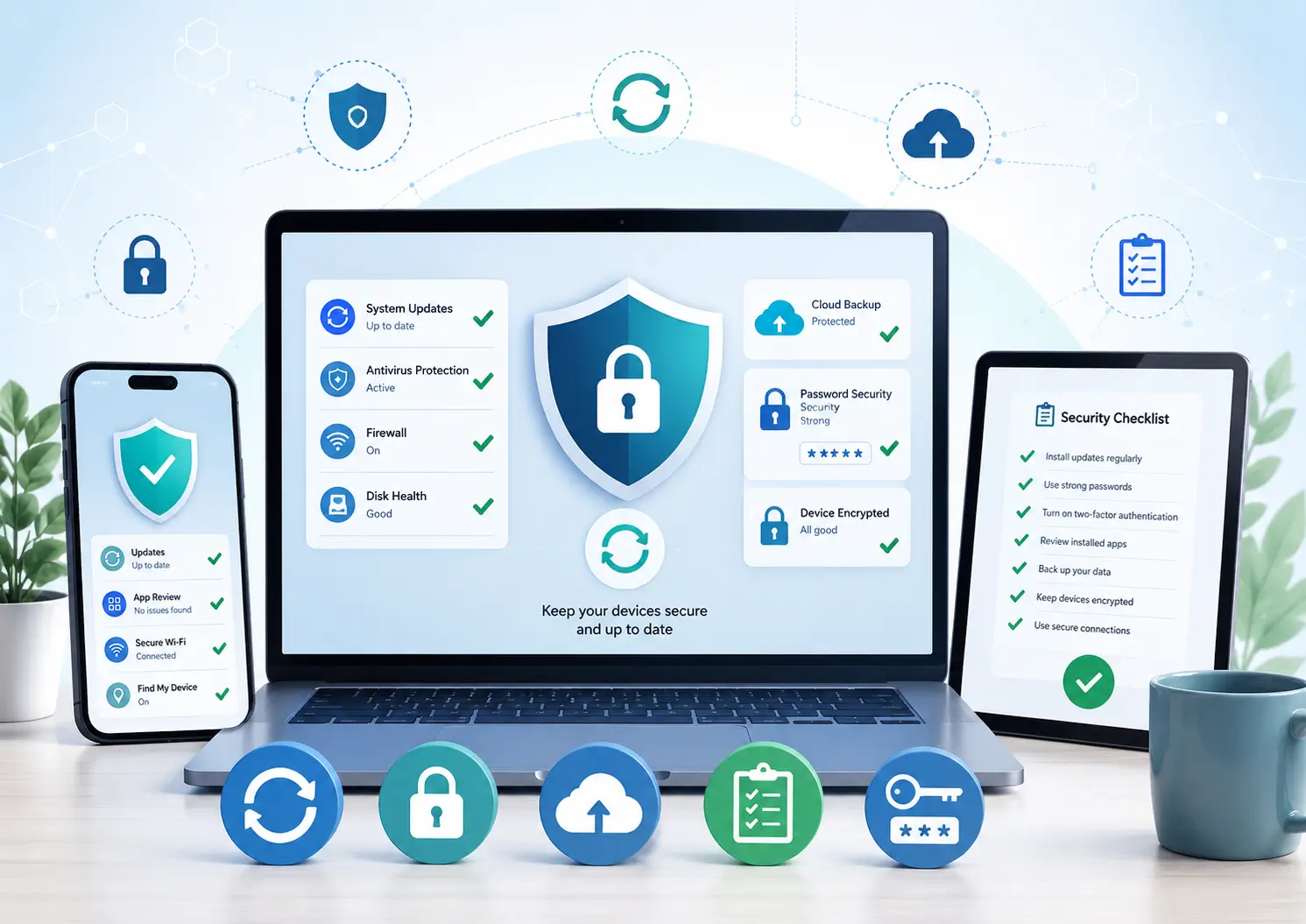
For computers and mobile devices, that usually means keeping the operating system and apps updated, turning on built-in protections, reviewing what software is installed, checking permissions, using strong passwords, and keeping backups current. These are not advanced security tricks. They are the everyday habits that reduce common risks such as malware infections, account takeovers, data loss, and app abuse.
Built-in protections already do a lot on modern devices, but they only help when people keep them enabled and current. Microsoft says Windows 11 includes real-time antivirus protection through Windows Security, along with Firewall and Smart App Control. Apple says macOS uses Gatekeeper and related runtime protections to help ensure only trusted software runs. Google says Play Protect scans Android apps and also checks apps installed from higher-risk sources such as browsers and messaging apps. Apple also stresses that updating iPhone and iPad software is one of the most important ways to stay protected.
The goal of basic security maintenance is not to become a cybersecurity expert. It is to build a small set of repeatable habits that make your devices safer and easier to manage. That is what makes this kind of maintenance so useful. It is simple, practical, and effective when done consistently.
Core Security Habits for All Devices
Some security habits matter on almost every device, whether you use a Windows laptop, a Mac, an Android phone, or an iPhone. These habits are not advanced, but they do a lot of the everyday work that keeps devices safer over time.
Keep the operating system updated
Operating system updates are one of the most important parts of security maintenance. They often fix known vulnerabilities, improve built-in protections, and close weaknesses that attackers already understand. Microsoft continues to position Windows Security and built-in protections as a core part of Windows 11, while Apple and Google also emphasize timely updates across their platforms.
Keep apps updated too
Device updates are only part of the job. Apps need maintenance as well. An old browser, messaging app, office app, or media app can stay vulnerable even when the device itself is current. Turn on automatic app updates where possible, and remove apps that no longer receive support.
Use strong passwords and multifactor authentication
A secure device still depends on secure accounts. Use strong, unique passwords for important services and turn on multifactor authentication whenever it is available. This matters because many real-world attacks focus on accounts first. If someone gets into your email or cloud storage, the damage can spread across several devices at once.
Turn on built-in protections
Modern devices already come with useful protections, but they only help if users leave them enabled. On Windows, that means tools such as Microsoft Defender Antivirus, Firewall, and other Windows Security features. On macOS, Apple documents protections such as Gatekeeper and XProtect. For Android, Google Play Protect scans apps for harmful behavior. With iPhone and iPad, built-in protections work best when the device stays updated and secured with a strong passcode.
Back up important data
Backups are part of security maintenance, not just convenience. A backup helps if a device is lost, damaged, infected, or locked out. The best backup is one that already runs before you need it. For many people, that means cloud backup plus one additional local copy for the most important files.
Remove apps and software you no longer use
Unused apps are easy to ignore, but they increase the attack surface of a device. Old software may stop receiving updates. Some apps also keep permissions they no longer need. Reviewing installed software every month or two is a simple way to reduce clutter and lower risk.
Restart devices regularly
People often leave phones, tablets, and computers running for long periods without thinking about it. A regular restart can help clear temporary issues, complete updates, and refresh the system. It is not a full security strategy, but it is an easy maintenance habit that many people overlook.
These habits work because they are simple and repeatable. You do not need perfect security to improve your device safety. You need a few good habits that you actually keep doing.
Basic Computer Security Maintenance
Computer security maintenance works best when it becomes a routine. You do not need to run advanced tools every day. You need to keep the system current, leave core protections in place, and review a few settings often enough that problems do not build up quietly in the background.
Windows security maintenance
For Windows users, the first step is to keep Windows Update running and install updates without long delays. Security fixes often close known weaknesses, so postponing them for too long gives attackers more time to use problems that already have patches available. Microsoft also says Windows 11 includes built-in protections through Windows Security, including Microsoft Defender Antivirus, Firewall, and Smart App Control.
It also helps to check that Microsoft Defender stays active unless you are using another trusted antivirus product. Review Windows Security from time to time instead of assuming everything is fine forever. Make sure protection is on, scan results look normal, and no alerts have been sitting there ignored for weeks.
Browser habits matter too. Keep your browser updated, review extensions every few months, and remove add-ons you do not use. Many computer threats now start in the browser through fake sites, harmful downloads, or risky extensions rather than through obvious malware files.
One more point matters on Windows more than ever: supported versions count. Microsoft ended support for Windows 10 on October 14, 2025, which means long-term security maintenance now depends more heavily on using a supported version such as Windows 11, unless a device is covered by special extended support arrangements.
macOS security maintenance
For Mac users, basic security maintenance starts with keeping macOS and Safari updated. Apple builds a lot of security into the platform, but those protections work best when the system stays current. Apple documents protections such as Gatekeeper, Notarization, and XProtect, which help block untrusted software and detect known malicious content.
App sources also matter on a Mac. Download software from the App Store or directly from trusted developers, and be cautious with unofficial downloads, cracks, or “helper” apps that ask for broad permissions. A Mac can still run into trouble if the user installs risky software and approves too much access.
It is also smart to review Login Items, background apps, and privacy permissions every so often. If too many apps start at login or keep access to files, camera, microphone, or accessibility controls, the Mac becomes harder to manage and easier to misuse. Basic cleanup is part of security maintenance too.
Backups matter just as much on macOS as they do on Windows. A current backup makes recovery easier after hardware failure, accidental deletion, or malware-related damage. Apple’s built-in backup tools make this easier, but they still need to be set up and checked.
Using a Mac? Our guide to the best antivirus for Mac in 2026 explains what macOS already protects, when third-party antivirus makes sense, and which options are worth considering.
A brief Linux note
Linux users still need security maintenance, even though Linux often gets described as safer by design. The basics stay familiar: keep packages updated, use trusted repositories, remove software you do not need, and avoid exposing services to the network unless there is a clear reason to do so.
Linux also benefits from the same habits that help on other systems: strong passwords, limited privileges, current backups, and careful review of what is running in the background. A Linux system may face different threats than a typical Windows PC, but it is not maintenance-free.
Across all desktop platforms, the pattern stays the same. A secure computer is usually not the one with the most complicated setup. It is the one that stays updated, stays clean, and gets checked often enough that small issues do not turn into larger ones.
Basic Smartphone and Tablet Security Maintenance
Phones and tablets need security maintenance just as much as computers do. In some ways, they need it more. People use them for banking, email, messaging, shopping, photos, cloud storage, and account recovery. That means a neglected phone or tablet can expose a lot of personal data very quickly. The good news is that basic mobile security maintenance is usually simple. It comes down to updates, app control, permission review, backups, and safe everyday habits.
Android security maintenance
For Android devices, one of the most important habits is keeping the Android version and security patch level current. Google continues to emphasize app scanning and device protection through Google Play Protect, which checks apps from Google Play and also gives extra scrutiny to apps installed from higher-risk sources such as browsers, file-sharing tools, and messaging apps.
It is also worth checking where your apps come from. The safest approach is to stick to Google Play and avoid sideloading unless you fully understand the risks. Many Android problems start when users install apps from unofficial sources because the app promises a shortcut, a premium feature, or a “free” version of something paid. Even when those apps are not openly malicious, they can still be poorly maintained or overly invasive.
App permissions deserve regular review too. Look at which apps can access your location, microphone, camera, contacts, files, and notifications. If an app no longer needs access, remove it. If you no longer use the app at all, uninstall it. That improves both privacy and security.
It also helps to restart the phone from time to time, remove old apps, and check for unusual battery drain, pop-ups, or unexplained data use. These are not always signs of malware, but they are signs that the device deserves a closer look.
iPhone and iPad security maintenance
For iPhone and iPad users, the biggest maintenance habit is simple: install iOS or iPadOS updates promptly. Apple regularly uses security updates to fix actively exploited issues and protect older supported devices. Apple’s support guidance continues to stress updating iPhone and iPad software as one of the most important security steps users can take.
A strong device passcode matters too. Face ID and Touch ID are useful, but they should sit on top of a solid passcode, not replace it. The device also becomes easier to recover if users keep Find My enabled and make sure backups are running through iCloud or another trusted method.
App cleanup matters on Apple devices too. iPhones and iPads can collect years of old apps, unused accounts, and forgotten permissions. Review which apps still have access to location, photos, Bluetooth, microphone, camera, and contacts. If something looks too broad, tighten it. If an app no longer matters, remove it.
Apple also offers Lockdown Mode for people who may face unusually high digital risk, though it is not meant for most everyday users. For most people, the more important habits are still updates, strong device security, sensible app permissions, and current backups.
Tablet-specific note
Tablets should be maintained much like smartphones. They often hold email, saved passwords, cloud files, shopping apps, and family account access, which means they deserve the same attention. Keep the operating system updated, review app permissions, remove apps you no longer use, and make sure backups are working.
Tablets also tend to be shared more often than phones, especially in families. That makes lock screen security, app review, and account cleanup even more important. A tablet may feel casual, but it still needs the same basic security habits as any other connected device.
Across Android, iPhone, and tablet use, the pattern stays simple. A well-maintained mobile device is updated, backed up, not overloaded with old apps, and reviewed often enough that warning signs do not go unnoticed.
A Simple Security Maintenance Schedule
One reason people skip security maintenance is that it sounds too big or too technical. A simple schedule makes it easier. You do not need to spend hours on security every week. Most of the value comes from a few short checks done on a regular basis.
Every week
Check for operating system and app updates and install anything important that is waiting. Look for unusual login alerts, security warnings, or backup failures. On phones and tablets, it also helps to notice signs such as unusual battery drain, repeated crashes, or strange pop-ups. A quick weekly check often catches small issues before they become harder to fix.
Every month
Review the apps and software installed on your devices. Remove anything you no longer use. Check important permissions, especially for apps that have access to location, camera, microphone, files, contacts, or accessibility features. Make sure backups are still running and that your main accounts still have multifactor authentication turned on. This is also a good time to review browser extensions and clear out anything you forgot you installed.
Every 3 to 6 months
Take a deeper look at your setup. Replace weak or reused passwords with stronger ones and make sure your password manager is up to date. Review account recovery options such as backup email addresses and phone numbers. Check startup items on computers and review what apps launch automatically on phones and tablets. If you rely on backups, confirm that you can actually restore from them if needed.
The goal is not to build a perfect routine. It is to make security maintenance regular enough that problems do not sit unnoticed for months. A short schedule you can actually follow is better than an ideal plan you never use.
Security Maintenance Checklist Table
If you want a quick version of this guide, the table below turns basic security maintenance into a simple routine. The goal is not to do everything every day. The goal is to check the right things often enough that small problems do not grow into bigger ones.
| Task | How Often | Why It Matters |
|---|---|---|
| Install operating system updates | Weekly or as available | Patches known vulnerabilities and improves built-in protections |
| Update apps and software | Weekly | Fixes security issues in browsers, apps, and tools you use every day |
| Review unusual alerts or login activity | Weekly | Helps catch account misuse or device problems early |
| Check backups | Monthly | Makes recovery easier after loss, failure, or malware |
| Remove unused apps and software | Monthly | Reduces attack surface and cuts down unnecessary permissions |
| Review app and privacy permissions | Monthly | Limits access to location, camera, microphone, files, and contacts |
| Review browser extensions | Monthly | Removes risky or forgotten add-ons that can create security problems |
| Check passwords and MFA settings | Every 3 to 6 months | Helps protect accounts from takeover and weak credential habits |
| Review startup and login items | Every 3 to 6 months | Reduces clutter and helps spot unexpected background activity |
| Test backup recovery | Every 3 to 6 months | Confirms that your backup is actually usable if something goes wrong |
This kind of checklist works because it keeps security maintenance practical. You do not need to memorize every security feature on every device. You just need a short list of habits you can repeat over time.
Warning Signs Your Device Needs Attention
Sometimes a device does not need advanced diagnosis. It just shows clear signs that something is off. The trick is noticing those signs early instead of waiting until the problem becomes serious.
One common warning sign is sudden slowdown. Computers, phones, and tablets can all get slower over time, but a sharp drop in performance may point to a problem that needs attention. That could mean too many background apps, a failing update, unwanted software, or something more suspicious running behind the scenes.
Another sign is unusual battery drain or overheating, especially on mobile devices. Some battery decline is normal with age, but a sudden change can suggest that an app, service, or background process is doing far more than it should. The same goes for unexpected data usage, which can point to apps or processes that deserve a closer look.
Frequent pop-ups, redirects, or strange browser behavior also deserve attention. If the browser keeps sending you to unfamiliar pages, opening unwanted tabs, or showing more intrusive messages than usual, something may need to be removed or reset. Often the problem is a bad extension, a risky app, or a misleading site permission that stayed active too long.
You should also pay attention to unknown apps, new toolbars, or settings that change on their own. If something appears and you did not install it, that matters. If the homepage, search engine, notification settings, or startup behavior suddenly changes, take it seriously.
Account-related red flags matter too. Unusual login alerts, password reset emails you did not request, or security notifications from major services can be signs that someone is testing access to your accounts. Even if the device itself seems fine, those alerts mean it is time to review passwords, MFA, and recent activity.
Another warning sign is storage filling up for no clear reason. That can happen for harmless reasons, but it can also point to runaway apps, hidden downloads, large cached files, or unwanted content accumulating in the background.
None of these signs prove malware on their own. Even so, they are worth checking. Security maintenance is much easier when you respond to small warning signs instead of waiting for a full-blown problem.
Common Security Maintenance Mistakes
Many security problems do not come from one dramatic mistake. They come from small habits that slip over time. A device may stay “mostly fine” for months, and that can make it easy to ignore warning signs until something finally goes wrong.
Updates
One of the most common mistakes is putting off updates for too long. People often delay updates because they are busy, worried about restarts, or afraid something might change. That is understandable, but old software stays exposed longer. When updates fix known security issues, waiting too long gives those issues more time to become real problems.
Passwords
Another common mistake is reusing passwords across different accounts. Even if the device itself is in good shape, reused passwords can still lead to account takeovers. One weak account can become a path into email, cloud storage, banking, or shopping accounts. That is why password maintenance matters just as much as device maintenance.
Apps and Browser Extensions
Many people also install too many apps and too many browser extensions. Some get used once and then forgotten. Others keep unnecessary permissions, run in the background, or create clutter that makes a device harder to review properly. The more software you keep around without checking it, the more chances there are for something outdated, invasive, or risky to remain active.
Permissions
Another mistake is ignoring permissions. It is easy to tap “Allow” and move on, especially on phones and tablets. Over time, that can leave apps with access they do not really need, such as location, microphone, camera, files, or contacts. Reviewing permissions regularly is one of the simplest ways to tighten security without changing how you use the device.
Built-in Protections
Some users also make the mistake of turning off built-in protections because they seem annoying or unnecessary. Disabling antivirus, firewall, app scanning, browser warnings, or other built-in security tools removes safety nets that are there for a reason. They may not catch everything, but they often stop common problems before they spread.
Backups
A very costly mistake is failing to back up important data. Many people assume backup is something they will “set up later.” Then a device fails, gets lost, or runs into malware, and recovery becomes far harder than it needed to be. Backups are one of those habits that feel optional until the day they become essential.
Maintanance
Another mistake is assuming that some devices do not need maintenance. People often think Macs, iPhones, iPads, or Linux systems are safe enough to ignore. Those platforms do have strong protections, but they still need updates, app review, backups, and sensible account security. No modern device is truly maintenance-free.
The biggest pattern behind these mistakes is simple: people assume security is a one-time setup. It is not. The safest devices are usually not the ones with the most complex tools. They are the ones that get basic maintenance often enough that small problems never get the chance to grow.
What Built-In Security Tools Can and Cannot Do
Built-in security tools do a lot more than many people realize. On modern devices, they already provide an important first layer of protection. Windows includes Windows Security, Microsoft Defender Antivirus, Firewall, and related protections. Apple documents built-in macOS protections such as Gatekeeper and XProtect. Android uses Google Play Protect to scan apps, while iPhone and iPad security depends heavily on current software protections and timely updates.
That means built-in tools can often handle the basics very well. They can scan for known threats, block or warn about suspicious files, enforce safer app behavior, and help reduce the risk of common malware and unsafe software. For many everyday users, especially those who keep devices updated and use them carefully, built-in protections may be enough as a foundation.
At the same time, built-in tools have limits. They cannot fix weak passwords, reused passwords, or accounts that do not have multifactor authentication enabled. They cannot fully protect someone who keeps installing risky apps, ignores update warnings, disables core protections, or clicks through every suspicious message without thinking. The tools also cannot guarantee recovery if a device fails and no backup exists.
Built-in protections also do not remove the need for basic review and cleanup. They may not tell you that you have too many old apps, too many browser extensions, or permissions that no longer make sense. They help protect the device, but they do not replace good habits.
That is the real balance to understand. Built-in security tools are an important safety net, but they work best when users support them with simple maintenance. Updates, backups, app cleanup, strong passwords, MFA, and cautious browsing still matter just as much.
Simple Habits Prevent Most Common Security Problems
Basic security maintenance does not need to be complicated to be effective. Most people do not need advanced tools or expert-level knowledge to make their devices safer. They need a few reliable habits that they can repeat over time.
Keeping software updated, removing apps you no longer use, reviewing permissions, backing up important data, and using strong passwords with multifactor authentication all make a real difference. These steps may seem small on their own, but together they reduce many of the problems that lead to malware infections, account theft, data loss, and privacy issues.
That is also why security maintenance works so well as a routine. It shifts the focus away from panic and toward prevention. Instead of waiting for something to go wrong, you keep the device in better shape so common threats have fewer chances to succeed.
Whether you use a Windows PC, a Mac, an Android phone, an iPhone, or a tablet, the same idea applies. A secure device is usually not the one with the most complicated setup. It is the one that stays updated, backed up, reviewed, and well-managed over time.
The best place to start is simple: pick one or two habits from this guide and make them regular. Small, consistent maintenance often does more for real-world security than one big cleanup done too late.
Frequently Asked Questions
How often should I do security maintenance on my computer?
A quick check once a week is a good starting point. That usually means installing updates, looking for security alerts, and making sure backups are running. A deeper review once a month also helps. That is a good time to remove unused software, check browser extensions, and review security settings. The goal is not to spend a lot of time on maintenance. It is to do a few small tasks often enough that problems do not sit unnoticed for months.
How often should I check security on my phone?
Phones and tablets deserve regular attention too. Weekly update checks are a smart habit, especially if the device does not install updates automatically. A monthly review of apps, permissions, backups, and account alerts is also useful. Because phones often hold email, photos, banking access, and account recovery tools, even a short monthly review can make a big difference.
Do Macs and iPhones still need security maintenance?
Yes. Macs, iPhones, and iPads have strong built-in protections, but they still need updates, app review, backups, and good account security. Apple documents protections such as Gatekeeper and XProtect for macOS, and it continues to stress the importance of current software on iPhone and iPad devices. Those protections help a lot, but they do not remove the need for routine upkeep.
Is built-in security enough for most users?
For many people, built-in security can be enough as a foundation, especially if they keep devices updated and use safe everyday habits. Windows includes Windows Security and Microsoft Defender Antivirus, macOS includes built-in protections such as Gatekeeper and XProtect, and Android uses Play Protect to scan apps. These tools can handle many common risks, but they still work best when users support them with updates, backups, strong passwords, and MFA.
What is the easiest security habit to start with?
The easiest place to start is keeping your device and apps updated. That one habit closes many known security gaps and supports the built-in protections your device already has. After that, the next easiest wins are turning on multifactor authentication, removing apps you no longer use, and making sure backups are active. Small habits like these are often the most effective because people can actually keep doing them.
References
The information in this article is based on official platform security pages and support resources for Windows, macOS, Android, iPhone, and iPad devices. These references support the guidance on updates, built-in protections, app scanning, and general security maintenance habits mentioned throughout the post.
- Microsoft, Windows security and comprehensive protection
https://www.microsoft.com/en-ca/windows/comprehensive-security - Microsoft Support, Stay protected with the Windows Security app
https://support.microsoft.com/en-us/windows/security/windows-security/stay-protected-with-the-windows-security-app - Microsoft, Windows end of support
https://www.microsoft.com/en-us/windows/end-of-support - Apple Platform Security, Gatekeeper and runtime protection in macOS
https://support.apple.com/en-ca/guide/security/sec5599b66df/web - Apple Platform Security, Protecting against malware in macOS
https://support.apple.com/en-ca/guide/security/sec469d47bd8/web - Apple Support, Update your iPhone or iPad
https://support.apple.com/en-ca/126776 - Apple Support, About Lockdown Mode
https://support.apple.com/en-ca/105120 - Google Play Help, Google Play Protect
https://support.google.com/googleplay/answer/2812853?hl=en