PC Performance and Security: How to Optimize Your Computer Safely
Modern computers slow down for many reasons, from background processes and outdated software to hidden malware and security vulnerabilities. Improving PC performance today is not just about speed, but also about protecting your system from cyber threats that can silently reduce stability and reliability.
This guide explains how performance and cybersecurity work together. You will learn safe ways to optimize your computer, reduce slowdowns, and strengthen protection so your device stays fast, stable, and secure over time.
Why Some PCs Fly and Others Crawl: The Real Story Behind Performance

Why does one computer feel lightning-fast while another—built with similar parts—struggles to keep up? The answer isn’t always about raw specs. PC performance is the result of how well your hardware, software, and settings work together. One weak link, or poor system maintenance, can hold everything else back.
When we talk about performance, we’re talking about more than just speed. It’s how quickly your PC starts up, how smoothly it runs under pressure, how efficiently it handles tasks, and how consistently it performs over time. A fast processor won’t help if your system is loaded with junk apps. And even high-end machines can feel slow without proper optimization.
In this guide, we’ll break down the core elements that shape your PC’s performance—what matters most, what’s often overlooked, and what you can do to improve it. You’ll also find deeper dives into hardware optimization, software tuning, and maintenance habits that keep your system running like new.
Let’s begin by defining what “performance” actually means in the context of a personal computer.
What PC Performance Actually Means
When people say a computer is “fast” or “slow,” they’re really describing a mix of factors that fall under the umbrella of PC performance. It’s not just about one component like your processor or storage drive—it’s about the overall experience of using your machine.
PC performance is best defined as the system’s ability to respond quickly, run reliably, and handle multiple tasks without lag, freezing, or crashing. This includes everything from:
- How fast your computer boots up
- How quickly applications launch and run
- How smoothly you can switch between programs or browser tabs
- Whether your system stays stable under load
- How well it manages background tasks without slowing down the foreground
There’s also a difference between technical performance and perceived performance. Your system might score well in benchmarks, but if apps take forever to load or multitasking feels clunky, it doesn’t matter how powerful your specs are on paper. Real-world usability is what counts for most users.
Several factors contribute to performance—CPU and RAM, storage speed, GPU power, and yes, even things like heat buildup or background software. That’s why improving performance means looking at the whole system, not just a single part.
Once you understand what defines good performance, the next step is learning what controls it—and how to improve it effectively.
Key Hardware That Impacts Performance
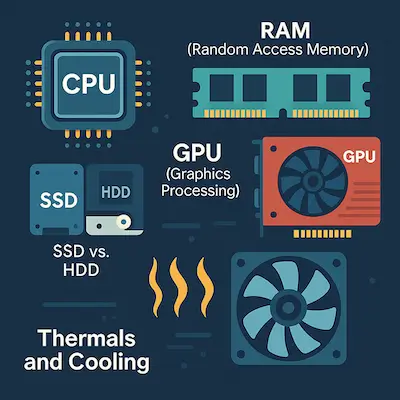
Your PC’s hardware is the foundation of its performance. If you’re working with outdated, unbalanced, or underpowered components, even the best software optimization won’t get you far. Here are the core parts that directly affect how fast and responsive your computer feels:
CPU (Central Processing Unit)
Often called the “brain” of your system, the CPU handles all instructions and logic. Faster processors (with higher clock speeds and more cores) can handle more tasks simultaneously and complete them quicker. A sluggish CPU slows everything down—from launching apps to multitasking.
RAM (Random Access Memory)
RAM is your system’s short-term memory. It stores data that’s actively being used, allowing your PC to access it quickly. Too little RAM leads to constant slowdowns, freezing, or lag, especially when multitasking or using memory-heavy programs like Chrome or Photoshop.
Storage (SSD vs. HDD)
Storage speed is one of the biggest factors in everyday responsiveness. A solid-state drive (SSD) can make your system feel drastically faster than a traditional hard disk drive (HDD). SSDs improve boot times, app loading, file transfers, and overall smoothness.
GPU (Graphics Processing Unit)
While essential for gaming and creative work, a good GPU also boosts general system responsiveness, smooth animations, and even hardware-accelerated tasks in browsers and apps. An outdated or underpowered GPU can cause choppy visuals or stutter under load.
Thermals and Cooling
Poor cooling = poor performance. If your CPU or GPU overheats, the system automatically slows them down to prevent damage (thermal throttling). Dust buildup, bad airflow, or weak cooling systems can silently degrade your PC’s speed over time.
💡 Tip: A well-balanced system—where CPU, RAM, storage, and GPU complement each other—is often more important than having just one high-end part.
📘 Want to Go Deeper?
Learn how to optimize every part of your PC—CPU, RAM, SSDs, thermals, and more—in our full performance guide.
👉 Read the Ultimate PC Performance Guide »
The Role of Software in Performance
Even with solid hardware, a PC can feel painfully slow if the software environment isn’t clean or optimized. Software plays a huge role in how well—or how poorly—your system performs on a daily basis.
Common culprits include background apps that launch at startup and continue running silently, bloatware that came preinstalled with your system, and leftover software from tools you no longer use. These consume memory, CPU cycles, and even internet bandwidth, all of which degrade responsiveness over time.
Then there’s junk buildup: temporary files, cached data, fragmented logs, outdated drivers, and broken registry entries. These don’t just take up space—they actively slow down processes, especially on older systems or machines without SSDs.
But it gets worse. Sometimes, the slowdown is caused by malware—viruses, spyware, or background crypto miners can hijack your system’s resources while staying largely invisible. If your PC has become sluggish suddenly, without any major changes, there’s a good chance malware is involved. That’s why it’s critical to run regular scans with trusted antivirus software that includes real-time protection.
For users who don’t want to manage all this manually, some PC tune-up utilities offer an all-in-one solution. These tools help automate cleaning tasks, disable unnecessary startup programs, and even flag performance-hogging processes—all in just a few clicks.
💡 Tip: Keeping your software environment clean is one of the easiest and cheapest ways to improve system speed without upgrading your hardware.
🛡️ Protect Your Performance at the Source
Malware doesn’t just steal data—it slows down your system. See our top picks for trusted antivirus tools that keep your PC fast and secure.
👉 Explore the Best Antivirus & Security Software »
🧰 Want an Easier Way to Speed Things Up?
Save time and avoid manual tweaks—see which PC tune-up tools actually work. Compare features and find the right fit for your system.
👉 Check Out the Best PC Tune-Up Software »
Signs of Good vs. Poor PC Performance
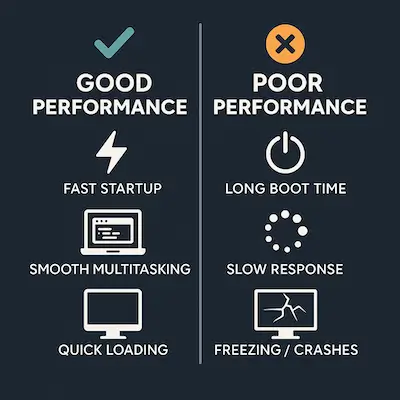
It’s not always easy to tell whether your system is underperforming—especially if the slowdown happens gradually over time. Here are the most common signs that separate a well-running PC from one that needs attention.
✅ Signs of Good Performance:
- Fast boot times (under 30 seconds for SSD systems)
- Apps open quickly and don’t freeze under pressure
- Switching between programs or browser tabs feels smooth
- Fans stay quiet and temperatures remain stable
- File transfers and installs complete quickly
- No unexpected crashes, popups, or security alerts
If your system consistently runs like this, you’re in good shape. Keeping things updated and cleaned will help it stay that way.
⚠️ Signs of Poor Performance:
- Slow startup or shutdown times, even on newer machines
- Frequent freezing, stuttering, or unresponsive apps
- Long delays when launching or switching between programs
- Overheating and noisy fans, especially under light workloads
- Browsers that crawl with just a few tabs open
- Security tools disabled, or suspicious popups appearing
💡 Tip: If your system used to run well but has recently slowed down, check for malware, startup clutter, or overheating—those are common culprits.
Sometimes, these problems can be fixed with a quick cleanup. Other times, they’re signs that your system needs a tune-up or even a hardware upgrade. Either way, knowing the symptoms is the first step toward solving them.
Everyday Habits That Help
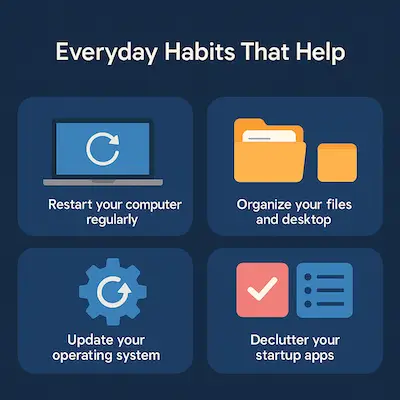
You don’t need to be a tech expert to keep your PC running smoothly. In fact, a few simple habits can go a long way toward maintaining performance and avoiding slowdowns altogether.
🔄 Restart your PC regularly
Don’t just put it to sleep for days at a time. A weekly restart clears memory, applies updates, and helps refresh system processes.
🧹 Clear junk and temp files
Use built-in tools like Storage Sense (Windows) or a trusted cleanup utility to remove cached data, temp files, and leftovers that can pile up fast.
🚫 Limit startup clutter
Many apps add themselves to your startup list without asking. Check your startup apps in Task Manager and disable the ones you don’t need.
🔍 Scan for malware monthly
Even if you use antivirus software, it’s smart to run a full system scan every few weeks. Performance issues can sometimes be caused by malware or adware.
🔄 Keep drivers and the OS updated
Outdated drivers and missed Windows updates can cause crashes or performance bugs. Set updates to automatic or check manually once a month.
🧼 Uninstall software you don’t use
That free trial app from last year? Still running. Clean out apps you no longer need—they may be taking up resources silently.
💡 Consistency beats complexity. These small steps only take a few minutes each week but can save you hours of frustration—and keep your system fast and stable for the long haul.
When You Should Consider Upgrading
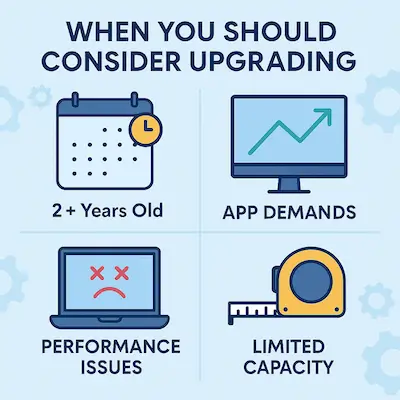
Software tweaks and cleanup routines can only go so far. Eventually, your hardware might be the thing holding you back. If your PC still feels sluggish even after maintenance and optimization, it may be time to upgrade some key components—or consider a new system altogether.
Here are common signs that your current hardware is limiting performance:
- You’re still using a traditional hard drive (HDD) as your main system drive
→ Upgrading to an SSD is one of the biggest performance boosts you can make. - You have 4GB or 8GB of RAM and often multitask
→ Moving to 16GB or 32GB makes a noticeable difference, especially for creative work or heavy browser use. - Your CPU usage is constantly maxed out, even when running only a few apps
→ Older processors can struggle with modern software, background services, and web-heavy workflows. - Apps freeze, crash, or take ages to open—even after a fresh OS install
→ This could mean your system has reached the end of its effective lifespan.
💡 Tip: You don’t need to replace everything. For most users, upgrading to an SSD and adding more RAM will solve 80% of performance issues—without the cost of a full new PC.
Evaluate what’s lagging most, and upgrade strategically based on how you actually use your computer.
Final Word: Performance Is a Habit, Not Just a Fix
There’s no single trick or upgrade that will magically transform your PC overnight. Great performance comes from a balanced system, smart maintenance, and consistent care. You don’t have to be a tech expert—or spend thousands on new parts—to keep your machine running fast and smooth.
Throughout this guide, you’ve seen how hardware, software, cooling, and even habits all work together to shape the speed and stability of your PC. Whether you’re looking to improve day-to-day responsiveness, reduce slowdowns, or simply extend the life of your system, the key is to stay proactive.
Clean it. Monitor it. Update it. And when the time is right, upgrade it.
Want to dive deeper? Check out our full PC Performance Guide for advanced tips and hardware insights, or explore our curated list of the best PC tune-up software if you’re looking for fast, reliable cleanup tools.
And don’t forget—security matters just as much as speed. Malware can wreck performance behind the scenes, so keeping your system protected with trusted antivirus software is essential to keeping it running at its best.
Take care of your computer, and it’ll take care of you.