How to Boost PC Performance: A Complete Guide
Ultimate PC Performance Guide: How to Maximize Speed, Power & Efficiency
Even powerful PCs can feel sluggish over time. Whether you’re a gamer, remote worker, or casual user, system performance depends on a combination of hardware, software, configuration, and habits. The good news? You don’t always need to upgrade your rig—you just need to understand what's slowing it down.
This guide covers every major factor affecting performance, from your CPU and SSD to GPU tuning, power settings, and OS health. Each section includes actionable tips, pro tools, and quick wins to get the most out of your machine.
CPU & RAM: The Brain and Memory of Your System
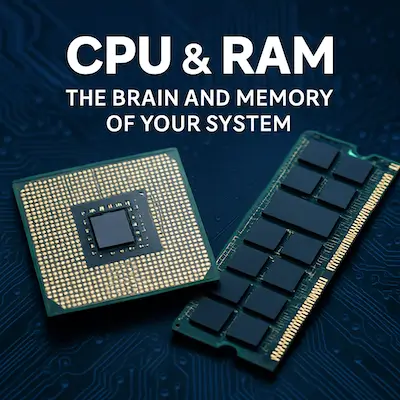
When it comes to overall PC performance, your CPU and RAM are the two most critical components. Together, they act as the engine and memory of your system—responsible for processing instructions, running applications, and keeping everything responsive and fluid. If either one is underpowered or overwhelmed, your entire PC can feel slow, no matter how fast your storage or internet connection may be. The better these components are matched to your workload, the faster and smoother your experience will be. Let’s break down how each one functions and what you can do to get the most out of them.
Understanding the CPU’s Role
Your CPU (Central Processing Unit) is the core engine of your computer. It processes every instruction, from opening files and running software to managing background operations. Two main specs define a CPU’s performance: clock speed, measured in gigahertz (GHz), and core count, which indicates how many tasks it can handle simultaneously.
- Clock speed affects how fast each core can execute instructions. Higher speeds generally mean snappier performance in day-to-day tasks like web browsing or loading applications.
- Core count matters more in multitasking environments and in software designed for multi-threading—such as video editing programs, 3D rendering tools, and modern games. A quad-core CPU is adequate for most people, but six or eight cores can make a real difference in demanding scenarios.
Another crucial factor is thermal performance. If your CPU gets too hot, it can trigger thermal throttling, a safety mechanism that slows down the chip to prevent overheating. Poor cooling, dust buildup, or failing fans can silently degrade your system’s performance, even if the CPU itself is capable.
💡 Tip: Regularly monitor CPU temperatures and usage with tools like HWMonitor or Core Temp. If you see consistent throttling, consider improving your cooling setup or cleaning internal fans.
How RAM Affects Speed
RAM (Random Access Memory) is your system’s short-term memory. Every time you open an application, browse the web, or switch between tasks, that information is temporarily stored in RAM so it can be accessed quickly. When you don’t have enough RAM for what you’re doing, your computer starts using your drive (usually your SSD or HDD) as virtual memory, which is drastically slower—and that's when you feel the lag.
- 8GB is the minimum for basic tasks like browsing, streaming, and light productivity.
- 16GB is ideal for most modern users, offering enough headroom for gaming, media editing, and heavy multitasking.
- 32GB or more is useful for professionals working with large files, virtual machines, or high-end creative software.
- 64GB or more is recommended for demanding workloads such as 3D animation, 8K video editing, scientific simulations, and running multiple virtual machines or enterprise-grade applications.
RAM speed also plays a role. Faster RAM (e.g., DDR4 3200MHz or DDR5 on newer platforms) allows data to move more quickly between your memory and CPU. While the difference isn’t always dramatic, higher speeds can improve performance in gaming and memory-intensive workflows.
💡 Tip: If your RAM is regularly maxed out (check via Task Manager), upgrading your capacity is one of the most cost-effective ways to breathe new life into an older PC.
🧠 RAM Size Comparison Table
Choosing the right amount of RAM can dramatically affect your PC’s speed and multitasking ability—here’s how different sizes compare based on typical usage.
| RAM Size | Best For | Performance Impact |
|---|---|---|
| 4GB | Very basic use (legacy systems, minimal multitasking) | Frequently lags with modern apps; not recommended in 2025 |
| 8GB | Browsing, email, office apps, streaming, casual use | Sufficient for light workloads but may struggle with multitasking or gaming |
| 16GB | Gaming, creative software, multitasking, remote work | Ideal for most users; handles demanding apps smoothly |
| 32GB | Professionals using large files, virtual machines, high-resolution content | Excellent multitasking; strong future-proofing |
| 64GB+ | Advanced workloads: 3D rendering, 8K editing, simulation, development stacks | Extreme multitasking and professional-grade computing |
Tips to improve CPU & RAM performance
- Close background apps hogging memory (Task Manager)
- Upgrade to 16GB+ RAM if possible
- Improve airflow to prevent CPU throttling
- Use Performance power mode (Windows settings)
💡 Quick Win: Hit Ctrl + Shift + Esc, go to the "Performance" tab and see if your RAM or CPU is consistently maxed. That’s your bottleneck.
Graphics Performance (GPU): Visual Power and System Balance
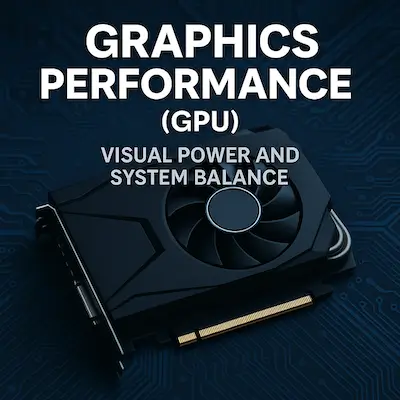
The GPU (Graphics Processing Unit) is responsible for handling everything you see on your screen—whether it’s rendering complex 3D environments in games, accelerating high-resolution video playback, or managing the graphical interface of your everyday applications. In recent years, GPUs have taken on even more responsibility, from assisting in AI-based tasks to speeding up certain workloads in creative software like Photoshop, Premiere Pro, and Blender. Poor GPU performance can manifest in a number of frustrating ways: stuttering video, dropped frames in games, laggy animations, and system freezes when running graphic-heavy programs. A well-performing GPU doesn’t just benefit gamers—it also ensures smoother multitasking, faster rendering, and an overall more responsive computing experience across a wide range of uses.
Integrated vs. Dedicated Graphics
- Integrated GPUs (Intel Iris, AMD Vega) share system memory—adequate for basic tasks.
- Dedicated GPUs (NVIDIA GeForce, AMD Radeon) have their own VRAM and power—essential for gaming, creative work, and 4K output.
How to Optimize GPU Performance
- ✅ Update drivers via NVIDIA GeForce Experience or AMD Adrenalin Software.
- ✅ Set GPU to "Maximum Performance" in the control panel.
- ✅ Lower graphics settings in games (shadows, resolution, anti-aliasing).
- ✅ Monitor thermals and usage with MSI Afterburner or GPU-Z.
- ✅ Turn off overlays and widgets (e.g., Xbox Game Bar, Discord).
- ✅ Keep fans and heatsinks dust-free.
💡 Quick Win: Switching your GPU power plan to "Max Performance" and closing background apps can boost performance by 5–15%.
🔧 Helpful GPU Utilities
Solid State Drives: The #1 Speed Upgrade
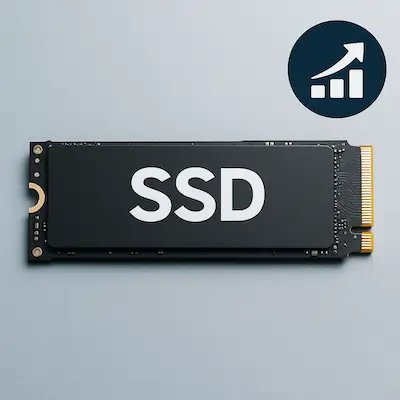
If you’re still relying on a traditional spinning hard drive (HDD), upgrading to a solid state drive (SSD) is hands down the most impactful performance upgrade you can make—especially for the price. SSDs don’t have moving parts, which means they access data dramatically faster than HDDs. The result? Your PC boots in seconds instead of minutes, programs launch almost instantly, and file transfers happen in a flash. It’s not just about speed—it’s also about responsiveness. Tasks that once felt sluggish, like opening large documents or switching between apps, suddenly feel smooth and snappy. Whether you're running an older desktop or a budget laptop, swapping in an SSD is a game-changer that can make your system feel brand new without breaking the bank.
A smart storage setup many users adopt is combining both an SSD and an HDD. Keep your operating system and frequently used programs on the SSD for fast boot times and quick access, while using the HDD for larger files like photos, videos, and backups. This setup balances speed and capacity without breaking the budget. Of course, if your budget allows for a larger SSD—such as a 4TB or 8TB model—you can consolidate everything on one drive without sacrificing performance or space.
Why SSDs matter
- Faster boot times (10s vs. 1-2 minutes)
- Apps launch near-instantly
- File transfers and installs complete quicker
Types of SSDs
- SATA SSDs: Much faster than HDDs but capped around 500MB/s
- NVMe SSDs: Modern standard, speeds of 2000MB/s and beyond
- M.2 drives: Slim form factor for laptops and desktops
💾 HDD vs. SSD Comparison Table
When it comes to storage, the difference between HDDs and SSDs is more than just speed—here’s a side-by-side look at how they compare in key areas.
| Feature | HDD (Hard Disk Drive) | SSD (Solid State Drive) |
|---|---|---|
| Speed | Slow (50–150 MB/s) | Fast (500 MB/s for SATA, 2,000–7,000+ MB/s for NVMe) |
| Boot Time | ~30–90 seconds | ~10–20 seconds |
| Durability | Prone to damage (moving parts) | Shock-resistant (no moving parts) |
| Noise | Audible spinning and clicking | Completely silent |
| Heat Output | Higher (due to mechanical movement) | Lower |
| Power Consumption | Higher, especially during startup and operation | Lower, improves battery life in laptops |
| Lifespan | Moderate (wears over time, mechanical failure) | Long (limited write cycles, but highly durable) |
| Cost per GB | Lower | Higher (but steadily decreasing) |
| Ideal Use Case | Archiving large files, backup storage | Everyday OS, apps, gaming, high-performance needs |
Popular SSDs (1TB to 8TB Capacity)
Here are some popular SSDs, with capacities ranging from 1TB to 8TB.
- Samsung 990 Pro NVMe SSD – Available in capacities of 1TB, 2TB, and 4TB. Known for top-tier performance and reliability. Ideal for gaming and creative workloads.
- WD Black SN850X NVMe SSD – Capacities: 1TB, 2TB, 4TB, 8TB. Great for gamers and power users needing large, fast storage.
- Crucial T500 NVMe SSD – Capacities: 1TB, 2TB, 4TB. Solid balance of speed and value for everyday users.
- Corsair MP600 PRO LPX NVMe SSD – Available in 1TB to 8TB capacities. High-performance SSD compatible with both PCs and PS5 consoles.
- Next-Gen PCIe 5.0 SSDs (e.g., Samsung 9100 Pro, WD_BLACK SN8100, Crucial T705, Corsair MP700) – Capacities of 1TB to 4TB (emerging 8TB options). Cutting-edge Gen5 speeds for extreme performance and future-proofing.
🔹 Want to See What’s Trending? 🔹
Check out Amazon’s current best-selling internal SSDs—updated in real-time and packed with trusted picks.
👉 View The Best Sellers in Internal Solid State Drives »
SSD Health & Maintenance
- Enable TRIM and disable scheduled defrag (not needed for SSDs)
- Leave 10–20% space free to avoid slowdowns
- Use tools like CrystalDiskInfo to check health status
💡 Quick Win: Open Task Manager, check disk usage. If it's at 100% frequently and you're on an HDD, it's time for an upgrade.
Power Settings & Thermal Management

Power settings and thermal conditions are often overlooked when diagnosing performance issues, yet they play a critical role in how your PC runs day to day. If your system is running hot or stuck in a low-power mode, even the fastest hardware can feel sluggish. Properly configuring your power plan and keeping your system cool ensures your CPU and GPU can operate at their full potential without throttling or slowdown. Let’s look at how you can fine-tune these settings for optimal performance.
Windows Power Plans
- Balanced: Default, energy-saving mode
- High Performance: Prioritizes speed over battery
- Ultimate Performance: Best for desktops or plugged-in laptops
Heat kills performance
- Dust buildup and bad airflow cause overheating
- Thermal throttling cuts CPU and GPU speed automatically
- Use cooling pads for laptops
- Replace thermal paste in older systems (every 2–3 years)
💡 Quick Win: Switch from "Balanced" to "High Performance" in Windows > Power Options for a noticeable responsiveness boost.
Operating System Health & Maintenance

Even the fastest hardware—top-tier CPUs, high-end GPUs, blazing-fast SSDs—can be dragged down by a cluttered or corrupted operating system. Over time, your OS accumulates leftover files, broken registry entries, outdated drivers, and background processes that bloat your system and consume valuable resources. You might notice longer startup times, frequent glitches, or unexplained slowdowns that aren’t tied to your hardware at all. In many cases, the root cause is simply years of accumulated digital debris. Without regular maintenance or the occasional clean install, even a premium machine can start to feel sluggish. Keeping your OS lean, clean, and updated is just as important as having the right components under the hood.
Why OS clutter matters
- Registry bloat, leftover files, broken installs
- Background services that never get cleaned up
Refresh your system
- Use Windows Reset to reinstall without losing files
- Clean install via USB for a full wipe
Keep your OS current
- Regular updates patch bugs and boost efficiency
- Delayed updates can mean missed performance improvements
💡 Quick Win: If you’ve had your OS for 3+ years with no reset, consider a full reinstall.
Software Solutions: Clean Up and Optimize
Sometimes, the slowdown you’re experiencing isn’t due to aging hardware—it’s the software weighing your system down. Over time, your PC can become overloaded with background apps, unnecessary startup programs, and lingering bloatware that quietly hogs memory and processing power. Even seemingly harmless software like toolbars, browser extensions, or bundled utilities can chip away at your system’s speed. Add to that the accumulation of temporary files, outdated drivers, and neglected updates, and performance takes a noticeable hit. Without routine cleanup and optimization, even a relatively new computer can start to lag, freeze, or feel unresponsive. The good news? These software-related issues are usually easy to fix with the right tools and habits—and they can make a dramatic difference in how fast and fluid your system feels.
Built-in tools
- Task Manager to spot heavy apps
- Storage Sense for auto-cleaning temp files
- Disk Cleanup for outdated system files
Third-party tools
- System Mechanic, CCleaner, AVG TuneUp, IObit ASC, Ashampoo WinOptimizer, Norton Utilities
- Great for automation, registry cleanup, bloatware removal, startup control
Best practices
- Disable startup items
- Uninstall unused apps
- Clear browser cache regularly
💡 Quick Win: Run a one-click scan with CCleaner or Ashampoo to free GBs of space instantly.
🔧 Top Tools to Clean, Speed Up, and Monitor Your PC
If you prefer an easier, faster way to maintain your system, these trusted tools can help you clean, optimize, and monitor your PC with just a few clicks.
| Tool | Use Case |
|---|---|
| CCleaner | Lightweight cleaner for removing junk files, fixing registry issues, and managing startup programs with a simple, user-friendly interface |
| AVG TuneUp | Automated maintenance tool with features like sleep mode for background apps, disk cleaning, and performance tuning for smoother operation |
| System Mechanic | All-in-one PC optimization suite that boosts speed, repairs system errors, manages startup items, and cleans up digital clutter |
| Ashampoo WinOptimizer | Feature-rich utility offering deep system cleaning, privacy protection, and customizable performance tweaks with an intuitive interface |
| IObit Advanced SystemCare | One-click optimization tool with real-time monitoring, registry cleanup, startup management, and optional antivirus integration |
| Norton Utilities Ultimate | Comprehensive system optimization with real-time performance boosts, deep cleaning tools, and automatic background maintenance |
🔧 Looking for the Right PC Tune-Up Tool?
Not sure which software to trust? We’ve reviewed and compared the top performers.
👉 See Our Best PC Tune-Up Software Picks »
Weekly/Monthly PC Maintenance Checklist
Staying on top of PC performance doesn’t have to be complicated or time-consuming. With just a few consistent habits, you can keep your system running smoothly and avoid the gradual slowdowns that plague most machines. This simple weekly and monthly maintenance checklist covers essential tasks—like cleaning up junk files, checking for updates, and scanning for threats—that help prevent performance issues before they start. Think of it as routine care for your computer, just like changing the oil in a car.
Weekly:
- Clear temp files (Storage Sense)
- Restart your PC
- Check Task Manager for slowdowns
Monthly:
- Run antivirus and malware scan
- Uninstall unused software
- Update drivers and OS
- Back up your system
Wrap-Up: Tune It, Don’t Trash It
There’s no single magic fix for a slow or underperforming PC—but there is a system. Great performance comes from the right combination of hardware awareness, clean and optimized software, smart thermal management, and consistent upkeep. You don’t need to chase the latest hardware every year or fall for flashy “miracle” utilities. Most of the time, what your PC really needs is attention, not replacement.
By applying the strategies in this guide—upgrading where it counts, optimizing your settings, and cleaning up your digital clutter—you can extend the lifespan of your machine and enjoy fast, stable performance day after day. Whether you’re gaming, working remotely, creating content, or just browsing, a well-tuned PC delivers a smoother, more reliable experience.
So don’t wait until your system grinds to a halt. Make PC maintenance part of your regular routine. A little time invested now saves you hours of frustration later—and possibly hundreds in avoidable upgrade costs.