
Home Wi-Fi security matters because your router connects almost everything in your home to the internet.
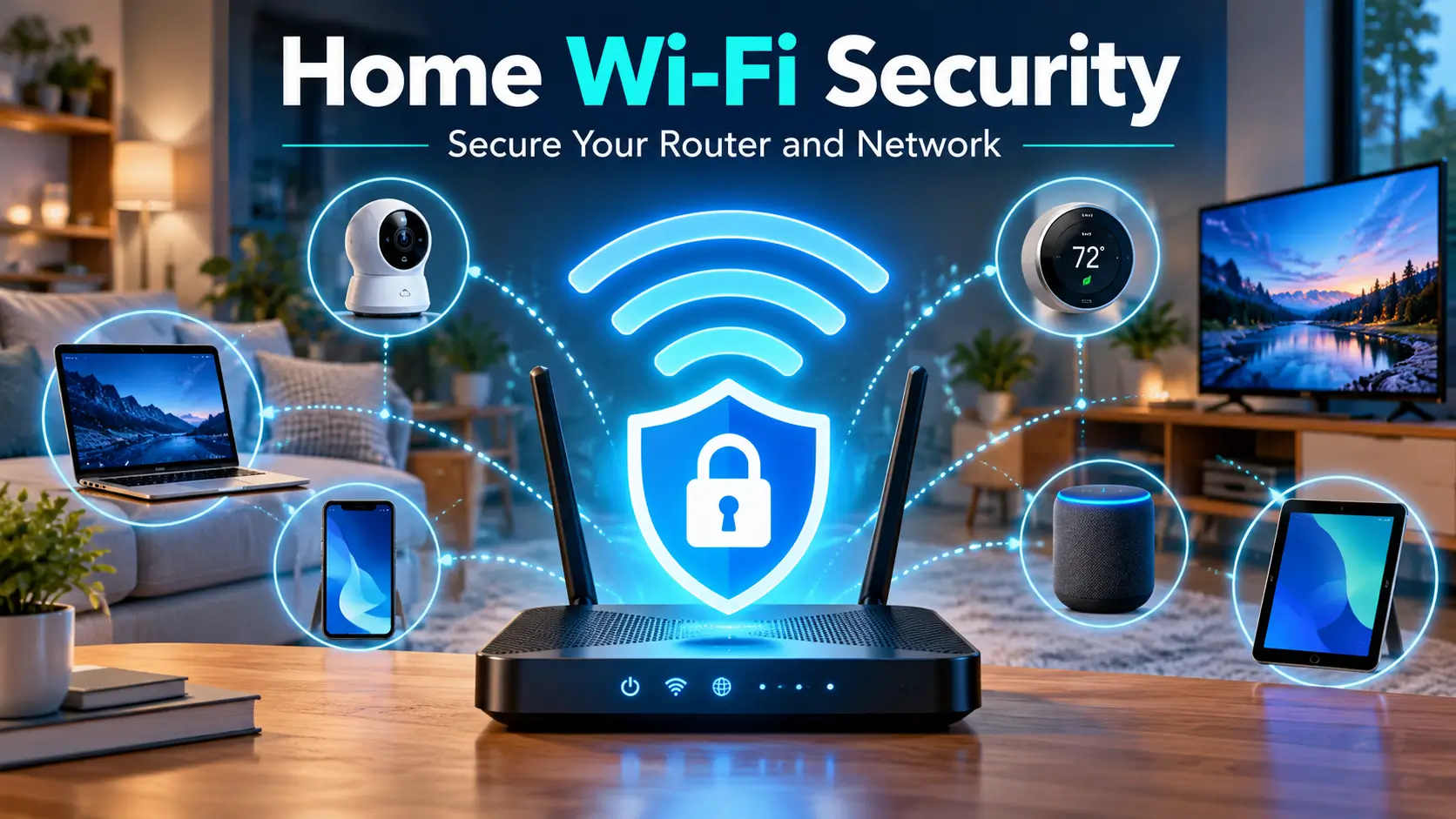
That may include laptops, phones, tablets, smart TVs, game consoles, security cameras, speakers, thermostats, doorbells, and other connected devices. If your router uses weak settings or old software, several devices can be exposed at the same time.
The good news is that you do not need to be a networking expert to improve your home network security.
A few practical changes can make a big difference. Strong passwords, modern Wi-Fi encryption, router updates, guest networks, and regular device checks are among the most useful steps.
The Federal Trade Commission recommends using WPA2 or WPA3 encryption, changing default passwords, keeping routers updated, and disabling unnecessary features such as remote management when they are not needed.
This guide walks you through the most important home Wi-Fi security steps in plain language, including what to change, what to leave alone, and when an old router may need replacing.
Table of Contents
Why Your Router Matters More Than You Think
Your router sits between your home devices and the internet.
It decides which devices can join your Wi-Fi network and controls much of the traffic moving in and out of your home.
That makes the router an important security point.
A useful way to think about it is this:
Your router is a little like the front door to your home network. You want trusted devices to get in easily while keeping everyone else out.
If someone gains access to the router settings, they may be able to change network settings, redirect traffic, weaken security, or interfere with connected devices.
Weak router security can also make life easier for someone who simply wants free access to your internet connection.
Home networks have become more complicated because many households now have dozens of connected devices. Some of those devices receive regular security updates. Others may receive very few.
That is why good home Wi-Fi security starts with the router itself.
Start With These 5 Home Wi-Fi Security Steps
If you only make a few changes, start here.
These five steps provide most of the practical benefit without requiring advanced networking knowledge.
1. Change Your Wi-Fi Password
Your Wi-Fi password controls who can join your network.
Use a password that is:
- long
- unique
- difficult to guess
- different from passwords you use for online accounts
Avoid using obvious information such as your last name, street name, phone number, birthday, or a simple phrase such as “password123.”
You also do not need to make the password impossible for your family to type.
A longer passphrase made from several unrelated words can be easier to remember while still being difficult to guess.
Do not reuse your email, banking, or social media password as your Wi-Fi password.
2. Change the Router Administrator Password
Your Wi-Fi password and router admin password are not the same thing.
The Wi-Fi password lets devices connect to the network.
The router admin password lets someone change the router’s settings.
That can include:
- Wi-Fi passwords
- security settings
- DNS settings
- guest networks
- firmware updates
- connected-device controls
If your router still uses its factory administrator password, change it.
Some newer routers force you to create a unique admin password during setup. Older models may still use default credentials printed on a label or listed in the manual.
Never leave a known default administrator password in place.
3. Use WPA3 or WPA2 Encryption
Your router should use modern Wi-Fi encryption.
The best option for most current devices is WPA3 Personal.
If WPA3 is not available, WPA2 Personal is still widely used and much better than older standards.
Avoid:
- WEP
- old WPA-only security
- open Wi-Fi with no password
If your router only supports WEP or very old WPA settings, it may be time to replace it.
Some routers also offer a WPA2/WPA3 mixed mode. This can be useful if you have older devices that do not support WPA3.
4. Update Your Router
Routers run software called firmware.
Manufacturers release firmware updates to fix bugs, improve performance, and address security problems.
Check whether your router supports automatic updates.
If it does, turn them on.
If updates must be installed manually, check the router app or management page occasionally.
If your internet provider supplied the router, updates may be handled automatically. It is still worth checking.
5. Make Sure the Firewall Is Enabled
Most modern routers include a built-in firewall.
In many cases it is already enabled by default.
Still, it is worth checking your router’s security settings to make sure the firewall has not been turned off.
For most home users, there is no reason to disable it.
Want to secure more than your router? Our guide to basic security maintenance for computers and mobile devices covers the routine updates, settings, backups, and checks that help keep the devices on your network safer too.
How to Get Into Your Router Settings
You cannot improve router security if you cannot find the settings.
Fortunately, most modern routers provide one of several ways to manage them.
The easiest option is often the router or internet provider’s mobile app.
Many current routers from internet providers and major manufacturers let you:
- change Wi-Fi passwords
- create guest networks
- update firmware
- review connected devices
- change security settings
If there is no app, you may be able to manage the router through a browser.
Look for the management address on:
- the router label
- the setup card
- the manual
- the manufacturer’s support site
- your internet provider’s instructions
You may see menu names such as:
Wireless
Wi-Fi
Security
Administration
Advanced Settings
Firmware
The exact layout varies by brand.
One important rule: do not randomly change advanced settings you do not understand.
There is no security benefit in turning settings on and off simply because they sound technical.
Focus on the practical changes in this guide.
Use WPA3 or WPA2, Not Old Wi-Fi Security Modes
Wi-Fi encryption protects information moving between your device and the router.
For home Wi-Fi security, the main thing you need to know is which option to select.
A practical order is:
- WPA3 Personal
- WPA2/WPA3 mixed mode, if needed for older devices
- WPA2 Personal, if WPA3 is unavailable
Avoid WEP.
WEP is an old security standard and should not be used on a modern home network.
You should also avoid leaving your home Wi-Fi completely open without a password.
If an old smart device stops connecting after you switch to WPA3, you may need mixed mode or WPA2 for compatibility.
That does not mean you should lower the security of the entire network without checking alternatives.
You may be able to place older devices on a guest or separate network instead.
If your router cannot support WPA2 or WPA3 even after an update, replacement is worth considering.
Turn Off Router Features You Do Not Need
Some router features are useful in certain situations but unnecessary for many households.
If you do not use them, disabling them can reduce unnecessary exposure.
Remote Management
Remote management lets you access the router’s settings from outside your home network.
Most consumers do not need this.
If you only manage your router while connected at home, consider turning remote management off.
That prevents the router’s administration page from being exposed to the wider internet.
WPS
WPS stands for Wi-Fi Protected Setup.
It was designed to make it easier to connect devices without typing a long Wi-Fi password.
Some routers use a physical button. Others support a PIN method.
If you do not use WPS, disabling it is a reasonable security step.
UPnP
UPnP, or Universal Plug and Play, helps devices and software automatically open network connections.
It can be useful for:
- gaming
- video calls
- media devices
- smart-home equipment
This setting needs a little more caution.
Turning UPnP off can improve security in some situations, but it can also break features that rely on it.
If everything works normally without UPnP, leaving it disabled may reduce unnecessary network exposure.
If disabling it causes problems with gaming, calling, or smart devices, you may need to turn it back on.
The goal is not to disable every feature.
The goal is to avoid leaving unnecessary services active.
Set Up a Guest Wi-Fi Network
A guest network is one of the easiest ways to improve home network security.
Instead of giving every visitor your main Wi-Fi password, create a separate network for guests.
This has several advantages.
Visitors can get internet access without joining the same network as your personal computers, storage devices, printers, and other equipment.
It also means you do not need to change your main Wi-Fi password every time it has been shared too widely.
A guest network can also be useful for certain smart-home devices.
Devices such as:
- smart plugs
- smart bulbs
- cameras
- TVs
- speakers
- older IoT devices
may not need direct access to your laptops or personal files.
Some routers provide a separate IoT network specifically for this purpose.
If your router offers guest isolation or a similar option, it can prevent guest devices from communicating directly with devices on the main network.
That can be useful in homes with frequent visitors or many connected devices.
Check Which Devices Are Connected to Your Wi-Fi
One of the most practical home Wi-Fi security habits is checking the device list occasionally.
Most routers show connected devices under a menu such as:
- Connected Devices
- Client List
- Attached Devices
- Network Map
- Device Manager
Look through the list.
You may see phones, computers, smart TVs, printers, cameras, speakers, and other devices.
Do not panic if you see a strange device name. Routers often identify devices with technical names that do not match what you expect.
A phone may appear under the manufacturer’s name. A smart plug may show a model number. Some devices may simply appear as “Unknown.”
Try turning devices off one at a time and refreshing the list if you are unsure.
Also look for old devices you no longer use. If you see a device you genuinely cannot identify, you can:
- block or pause the device if your router supports it
- change the Wi-Fi password
- reconnect trusted devices using the new password
Changing the Wi-Fi password forces devices to authenticate again. That is often the simplest way to remove unwanted access.
Phones and tablets also need their own protection, so it is worth reviewing our mobile device security guide if several family devices regularly connect to the network.
Do Not Forget Smart Home Devices
Home Wi-Fi security is not just about computers.
Smart-home devices can also create problems if they use weak passwords or outdated software.
Review devices such as:
- security cameras
- video doorbells
- smart TVs
- smart speakers
- smart locks
- thermostats
- plugs
- lights
Start by changing any default passwords.
If the device uses an online account, use a unique password for that account too.
Turn on multifactor authentication when the manufacturer supports it.
Check for firmware or app updates.
Some devices update automatically. Others require you to open the manufacturer’s app.
If you stop using a smart device, remove it from your account and network.
Old cameras, plugs, or hubs that sit forgotten in a drawer can still remain associated with online accounts.
For devices that do not need access to your computers, consider placing them on a guest or IoT network.
When Should You Replace an Old Router?
You do not need to replace a router simply because a newer Wi-Fi standard exists.
But there comes a point when old hardware becomes a security problem.
Consider replacement if:
- the router does not support WPA2 or WPA3
- firmware updates have stopped
- the manufacturer no longer supports the model
- the router crashes frequently
- security features are very limited
- your ISP says the equipment is obsolete
- the router is old enough that modern devices have compatibility problems
If you rent your router from an internet provider, contact the provider before buying anything.
You may be eligible for a newer model at no additional cost.
If you own the router, check the manufacturer’s support page to see whether firmware updates are still available.
A router that still receives security updates does not need replacement simply because something newer exists.
Home Wi-Fi Security Mistakes to Avoid
Many home network problems come from basic settings rather than sophisticated attacks.
Avoid these common mistakes:
- keeping the factory admin password
- using WEP or an open Wi-Fi network
- reusing an important account password for Wi-Fi
- never installing router updates
- giving the main Wi-Fi password to everyone
- leaving remote management enabled when you do not use it
- ignoring old connected devices
- keeping unsupported router hardware indefinitely
- assuming a hidden Wi-Fi name makes the network secure
- changing advanced settings without understanding them
Hiding the network name, also called hiding the SSID, is not a substitute for strong encryption and a good password.
Focus on the settings that actually improve security.
Home Wi-Fi Security Checklist
If you want the shortest version of this guide, use this checklist.
-
Change the router administrator password
-
Create a strong, unique Wi-Fi password
-
Use WPA3 or WPA2
-
Install the latest router updates
-
Enable automatic firmware updates if available
-
Confirm the router firewall is on
-
Disable remote management if you do not use it
-
Review WPS
-
Review UPnP
-
Create a guest Wi-Fi network
-
Check connected devices
-
Update smart-home devices
-
Remove devices you no longer use
-
Check whether the router still receives manufacturer support
Download the Home Wi-Fi Security Checklist
For an easier way to review your network, download our Home Wi-Fi Security Checklist: 12 Things to Check on Your Router.
The one-page printable checklist covers the most important router settings so you can work through them without keeping this article open.
⬇️ Download the Home Wi-Fi Security Checklist PDF
Taking your devices outside the home? Home Wi-Fi gives you control over the router, but cafés, hotels, and airports are different. See our Public Wi-Fi Safety Tips for Laptops and Phones for practical advice when using networks you do not manage.
Frequently Asked Questions
How do I know if my home Wi-Fi is secure?
Start by checking whether your router uses WPA2 or WPA3, has a strong Wi-Fi password, uses a unique administrator password, and receives regular firmware updates.
You should also review connected devices and make sure remote management is disabled if you do not need it.
No home network is completely risk-free, but these steps cover many of the most important home Wi-Fi security basics.
Should I use WPA2 or WPA3?
Use WPA3 Personal if your router and devices support it.
If older devices cannot connect, WPA2/WPA3 mixed mode can be a practical compromise.
If WPA3 is unavailable, WPA2 Personal remains a much better choice than WEP or older WPA modes.
How often should I change my Wi-Fi password?
You do not need to change a strong Wi-Fi password every month for no reason.
Change it when:
- you think someone unauthorized has it
- you shared it with people who no longer need access
- you notice an unknown device
- the password is weak or reused
- the router has been reset or compromised
A strong, unique password can remain useful for a long time if it has not been exposed. If you need help creating passwords that are strong without becoming impossible to remember, see our Strong Password Protection guide.
Should I hide my Wi-Fi network name?
Usually, no.
Hiding the SSID may make the network less visible to casual users, but it does not provide meaningful protection against someone actively looking for wireless networks.
Use WPA2 or WPA3 and a strong password instead.
Should I turn off WPS?
If you do not use WPS, turning it off is a sensible choice.
You can still connect devices by entering the Wi-Fi password normally.
If you regularly use the router’s physical WPS button for trusted devices, you may prefer to leave it on.
Should smart devices use a guest network?
It can be a good idea.
Smart-home devices often do not need direct access to personal computers or storage devices.
Placing them on a guest or separate IoT network can reduce how much access they have to the rest of your home network.
Check whether your router’s guest network supports the devices you want to use, because some smart-home systems need local communication to work properly.
How can I tell if someone is using my Wi-Fi?
Check the connected-device list in your router app or administration page.
If you see a device you cannot identify, investigate before assuming it is an intruder.
If you remain unsure, change the Wi-Fi password and reconnect your trusted devices.
Do I need antivirus on my router?
Most consumers do not install traditional antivirus software directly on a router.
Router security and antivirus software solve different problems.
Your router helps control network access and traffic. Antivirus or endpoint security protects individual computers and other supported devices from malware and related threats.
Good home Wi-Fi security works best alongside secure, updated devices.
A Secure Home Network Starts With the Router
Improving home Wi-Fi security does not require constant monitoring or advanced technical knowledge.
For most households, the biggest gains come from a short list of practical steps:
use a strong Wi-Fi password, change the router admin password, enable WPA2 or WPA3, keep the router updated, create a guest network, and review connected devices from time to time.
Do not forget the smart-home devices connected to the network either. Cameras, TVs, speakers, plugs, and doorbells should also receive updates and use secure account settings.
And if your router is so old that it no longer receives updates or cannot support modern Wi-Fi security, replacement may be the better long-term option.
A secure router helps protect every laptop, phone, tablet, television, camera, and smart device that depends on it. But a secure router cannot protect you from every risky website or download, so browser security still matters on every computer connected to the network. To complement your router security, check out our Web Browser Safety Resource Guide.
Ten minutes spent reviewing your router today can improve the security of every connected device in your home.