Norton Software Problems and Computer Security Related Websites
Help! I Cannot Connect to LifeLock.com Norton.com or Any Other of the Antivirus Software and Computer Security Related Web Sites
Computer viruses and Trojans have many variants that are capable of blocking or shutting down the installed Norton antivirus software and modifying the Host file in order to prevent a user to connect to Norton.com that provide clean up solutions and help computer users clean their PCs of these annoyances.
For example – you can connect to the Internet, browse some sites, but you cannot connect to Norton.com or another antivirus or security program website.
Many computer viruses and Trojans were created to use compromised and infected computers as:
- email relays (having your PC sending out thousands of phishing or scamming emails);
- a point for further virus/Trojan spread onto other computers;
- a proxy computer used for breaks into various online systems for the purpose of obtaining personal data like social security numbers, bank account or credit card numbers, and so on.
In this Help article we discuss a method, which in some cases, is sufficient enough to solve the problem. This method involves cleaning the Windows "Hosts" file which is important part of any Microsoft Windows operating system. Trojans and viruses do not want you to have access to your antivirus program and antivirus software. Trojans and computer viruses may alter the "Hosts" file in such a way that you cannot access the Norton site or other antivirus or computer security program, websites. The following procedures will help you identify and correct your "Hosts" file if it has indeed been corrupted or changed by a Trojan or virus. After trying the steps below, if your "Hosts" file was corrupted, you should then be able to connect to your antivirus program and computers security websites like Norton.com
How to Check and Fix Hosts File
Here are the "Hosts" file check and fix steps to be performed:
- Locate the "Hosts" file in your system. Note that the file has no extension. For Windows Vista, WIndows XP, and Windows 2000, the "Hosts" file should be in the following folder:
%windir%\System32\drivers\etc - where %windir% is the location of "Windows" folder, for example, "C:\Windows".
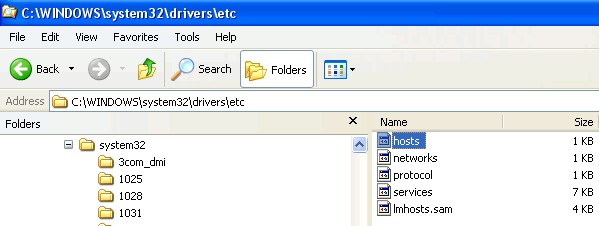
- Double click onto the "HOSTS" file. In the newly opened window find a program called Notepad, select it, and hit the OK button.
- If your "Hosts" file looks like this:
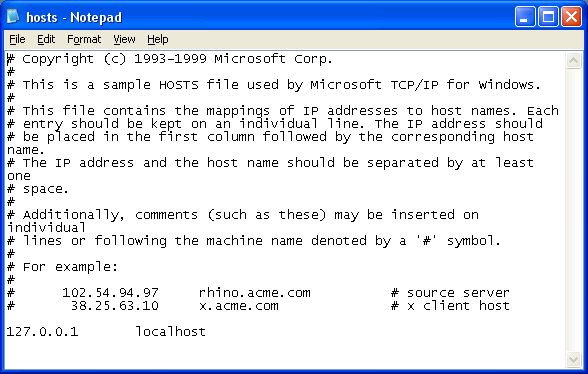
close the file and STOP reading this page as it will be of no help to you.
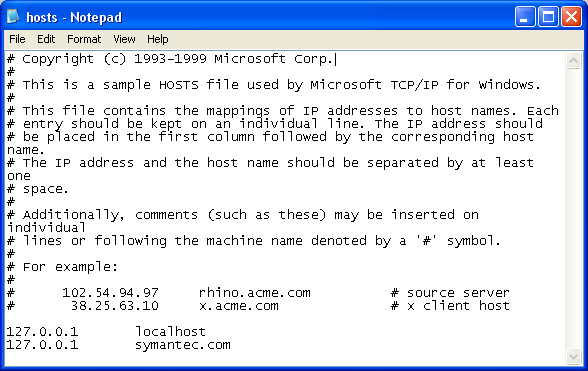
But, if the content of your "Hosts" file shows more of 127.0.0.1 entries and lists some of the well known web sites (like Norton.com in this example), then continue reading this page. One of the bad "Hosts" file variations is this:
- Disconnect your computer from the Internet. (At this stage you may want to print out this page.)
- Close the file so you are back to your Windows Explorer.
- Make RIGHT CLICK onto the Hosts file and select COPY.
- Make RIGHT CLICK into the white area of the same window and select PASTE. The result should be that now you have a file called "Copy of hosts". Now you have a backup of your file, should you ever need it (highly unlikely). The file with such name is not dangerous.
- Now go back and open the original "Hosts" file and delete all lines beginning with 127.0.0.1 except the first one that reads:
127.0.0.1 localhost
During the edit process, do not pay attention to any of the lines that begin with # sign as that stands for "commented out" which means those lines do not get read by the system, or better say, they're ignored by the system. - Save the file.
- Connect you computer to the Internet and immediately check if you can access symantec.com web site.
- If it does not work, restart your computer and try again. If it still does not work, check the "Hosts" file to ensure it did not get modified by the virus during the boot up process.
- If it worked (before or after the reboot) then you fixed a small part of the problem – just so you can connect to Norton.com and get further help.
- Now the best is to use security siftware like Norton 360.
- After you are finished with scanning and identifying the threats and problems, you can pursue a further action, recommended by Norton LifeLock.