Norton Internet Security - The Main Window
Exploring The Norton Internet Security Main Window
The main Norton Internet Security window is the one stop source for managing the Norton software installed on a computer. Once a user understands the options in the window, they are better able to not only use, but manage their Internet security software. From checking the system status to running updates, users can perform most tasks from a single window.
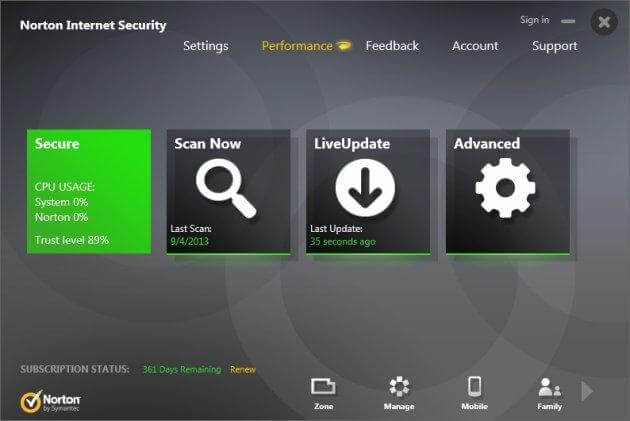
The window is divided into three main sections. The first includes information on the system status and ways to customize settings. The second actually allows users to perform scans and updates. The final section provides information on how to fix issues with the system and perform other account management tasks.
Section 1
The first section close to the top of the window includes six different areas that help in controling Norton Internet Security installation and in getting more information about the status of the computer system this security software is installed on. The System Status area shows the overall status of the computer. A Secure system is fully protected. An Attention state means there is an issue to be fixed. An At Risk state means immediate action should be taken to resolve the problem.
Users can configure settings to their software through the Settings section. In the Performance area, users can view details on all alerts, installations and quick scans. It also shows the status of CPU and memory usage. To leave feedback or contact support, use the Feedback and Support sections. Finally, the Account area allows users to either create or login to their Norton Account.
Section 2
This area is the action part of the Norton Internet Security main window located in its middle part. The Scan Now area allows users to scan their computer, run a reputation scan or scan their Facebook wall for malicious links. To download the latest virus definitions and program updates, use the LiveUpdate area of the window.
For more advanced features, look no further than the Advanced area. Users can run more advanced scans, view their security history and view quarantined items. Users can also see any vulnerable areas of their computer and applications. Norton parental controls can also be managed from here.
Section 3
The bottom area of the main window provides users with the most up-to-date virus and threat information. As with the first section, there are six different areas to explore. The Activity Map displays the top cybercrime hit cities. Users can view details on the cybercrimes and tips for staying safe from these threats.
Parents can monitor their child's activities through the Online Family area. After logging and setting up the details, parents can view their child's latest activity, including search terms.
The Manage section allows users to manage all Norton products from all devices in a single location. To stay safe while using a mobile device, select the Mobile option to download the Norton Mobile Security app for Android. The Backup area allows users to create and manage their Norton Online Backup account. Finally, the Safe Web area allows users to check whether a website is safe or not.
Some of the options in this section may or may not be available depending on the options of other Norton software and services the user has.
« Back to the Norton Resource Center