Norton 360 Scheduler
Norton 360's Smart Scheduler
While building the first release of Norton 360 in 2006, Symantec decided they didn't want to use the typical task scheduler so many other products use to run weekly antivirus scans. Remembering to keep your computer on "every Wednesday night at 2am" is a pain, so Symantec set out to build a better solution.
Norton 360 introduced Symantec's smart task scheduler. The new scheduler doesn't rely on a fixed schedule - instead it works around yours. Basically, Norton 360 is always looking for times that you're away from your desk and uses those opportunities to perform the routine maintenance tasks it needs to keep your PC safe and tuned.
The scheduler was a huge success and it was improved in newer versions of Norton 360. It works so well that often questions are asked like "How can I tell if a scan has run?" or even, "360 is too quiet. It never runs scans." Stay assured, it does run weekly scans but users don't see them - and that's the point. Here is the insight into how it works:
The first thing considered is user activity. Whenever you are using your PC, Norton 360 tries to stay out of your way as much as possible. After that, it looks at system resource usage. If you've left for lunch while your computer is rendering a large video or performing some other intensive task, the software will avoid doing any work if it can. However, if the system is idle and there's a job to be performed, that's when the smart scheduler kicks in. If you return to your desk, Norton 360 will stop the job and continue it later.
Symantec wants the scheduler to provide users with a true set-it-and-forget-it system. For those curious users wanting more transparency, Symantec worked on small application that you can download here to see what's going behind the scenes. You may need to install a copy of Microsoft's .NET Framework if they don't already have it.
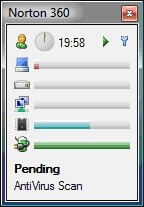
At the top you will notice a small icon of a person - that's you. Next to it is a timer that starts at 20 minutes and begins counting down after Norton 360 notices you're not moving the mouse or keyboard. Below this is a list of all your computer's resources (CPU usage, disk activity, network traffic, etc...). When the time is right and a scan is pending, you'll see it start up.
When you first run the tool, you might not see any "Pending" jobs. That's okay; it just means Norton 360 doesn't have anything to run right now. In this case, the timer doesn't tick down either. This is for performance - there's no point in the product monitoring user activity if it has nothing to do.
There's one other feature in the widget worth mentioning. In the top right corner, there's a green "play" button. This will make you appear inactive for 5 seconds. Say you're heading off to lunch and want Norton 360 to start its scan now instead of waiting 20 minutes. Click this button, walk away and any pending jobs will start immediately. If you come back before those jobs are done, they'll stop just like normal.
Cool feature and widget, isn't it?
« Back to the Norton Resource Center